


We’re excited to announce a new tutorial on Glasp: How to Import Your Medium, Snipd, Instapaper & Hypothesis Highlights into Glasp.
If you’ve been highlighting for a while, your best ideas are probably scattered across four or five apps. A quote saved in Medium, a podcast snip in Snipd, an article in Instapaper, a research annotation in Hypothesis. Each one useful, but none of them talking to each other. Scattered highlights are dead highlights: they only start working for you once they live in one place.
With Glasp’s import integrations, you can pull all of them into one library in a few clicks, and then actually put them to work.
Once your highlights are all in Glasp, you can:
Plug them into any AI tool: the Glasp MCP Connector exposes your library to Claude and other AI clients, so they answer using what you’ve actually read, not the whole internet
Feed your AI Clone: every highlight trains a personal AI built on your own thinking, so it can summarize, recall, and write in your voice
Send them anywhere: export to Notion, Obsidian, and Roam, or as Markdown, CSV, and JSON, your data stays yours
In this tutorial, we’ll walk you through importing from Medium, Instapaper, Hypothesis, and Snipd, one by one.
If you want to reread or highlight this newsletter, save it to Glasp.
✍️ How It Works
Step 1: Open Settings → Integrations
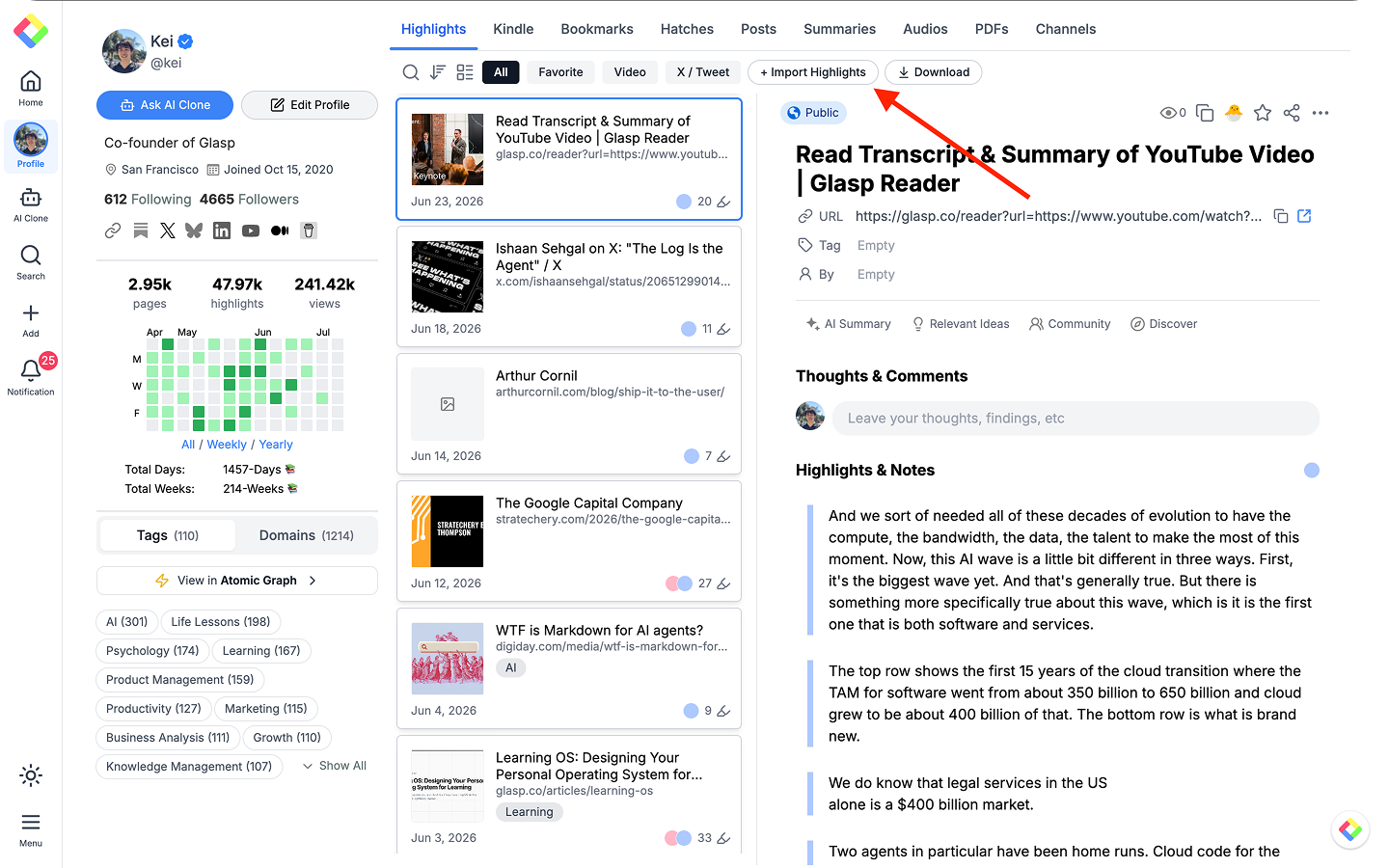
Three of these (Medium, Instapaper, and Hypothesis) start from the same place. On your Highlights page, click + Import Highlights at the top to open the Integrations page, where you’ll find every import source under the Import section. (Snipd works a little differently, we’ll cover it last.)
Step 2: Import from Medium
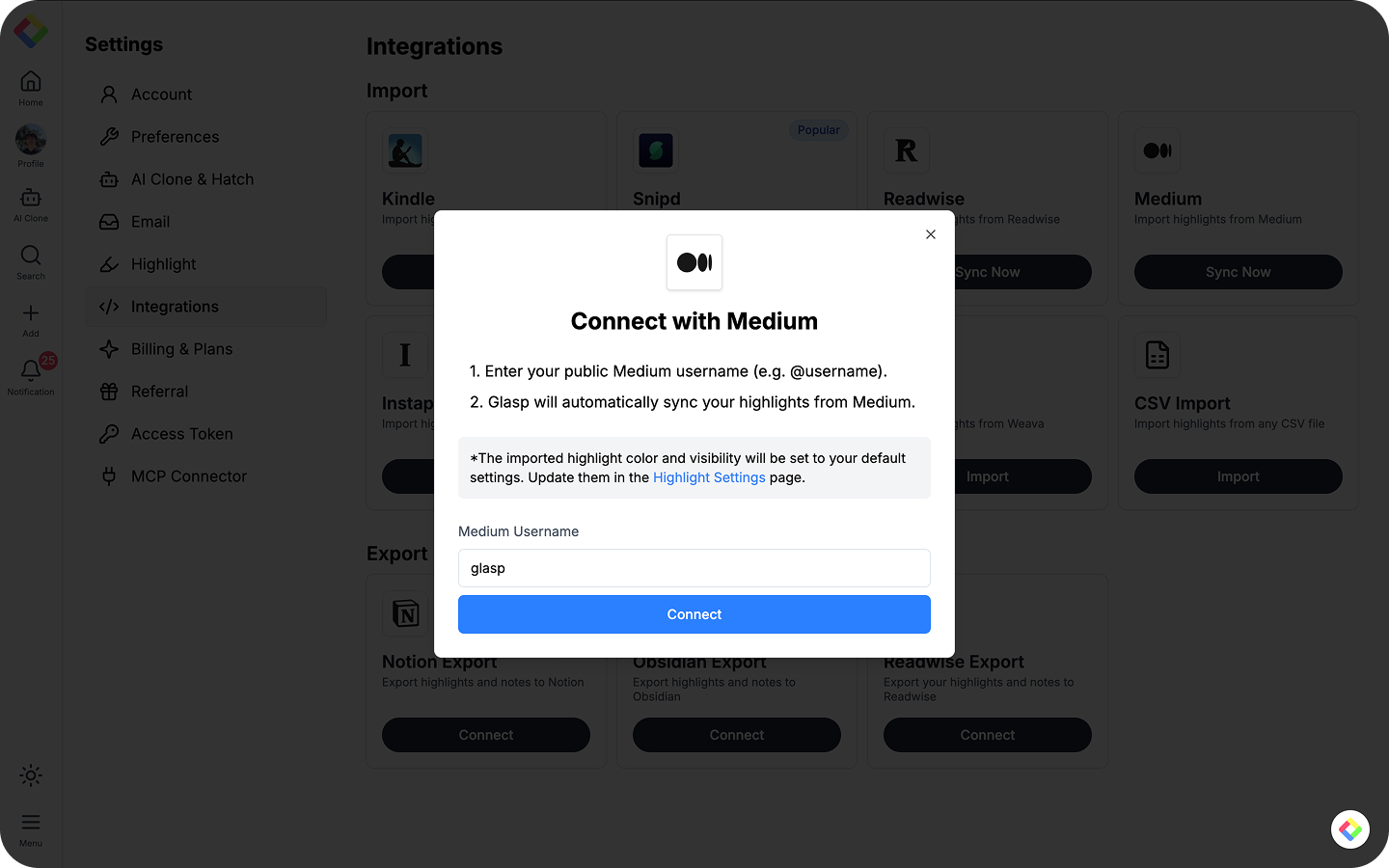
Click Sync Now on the Medium card. In the modal, enter your public Medium username (e.g. @username) and click Connect. No integration token needed. Glasp syncs automatically (you can close the tab while it runs), and when it's done, click Go to My Highlights.
Full walkthrough: How to Import Highlights from Medium into Glasp
Step 3: Import from Instapaper
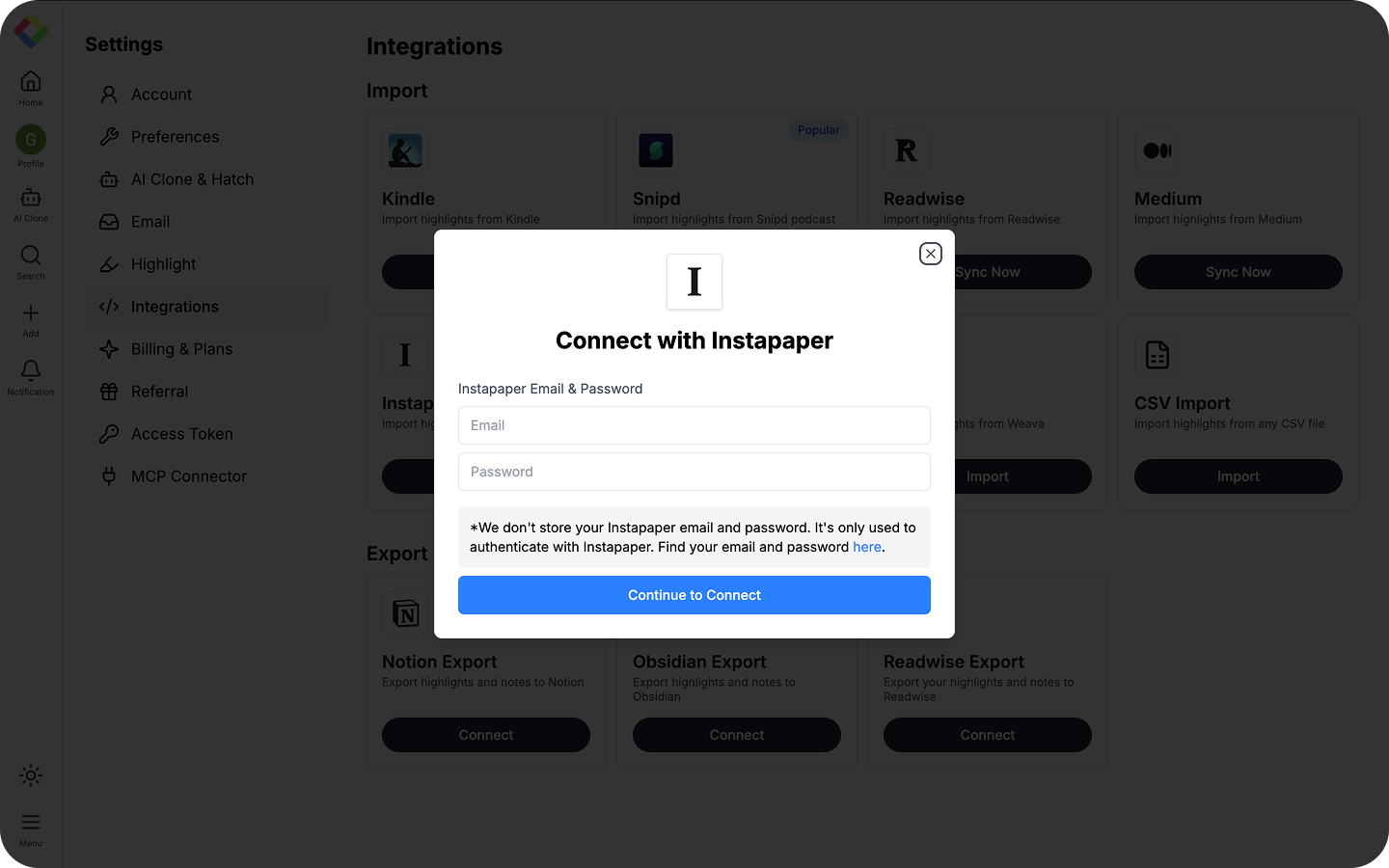
Click Import on the Instapaper card, then sign in to Instapaper. (We don’t store your login, it’s only used to authenticate.) Click Continue to Connect, and your highlights import right away.
Full walkthrough: How to Import Highlights from Instapaper into Glasp
Step 4: Import from Hypothesis
Click Sync Now on the Hypothesis card to open the Connect with Hypothesis modal. Click the Hypothesis API token link to get your token, paste it into the Hypothesis API Token field, and click Save API Token. Glasp syncs your highlights automatically.
NOTE: If the Hypothesis API token link shows a “Page Not Found” error, go to hypothes.is/login instead, log in, and copy your API token from there.
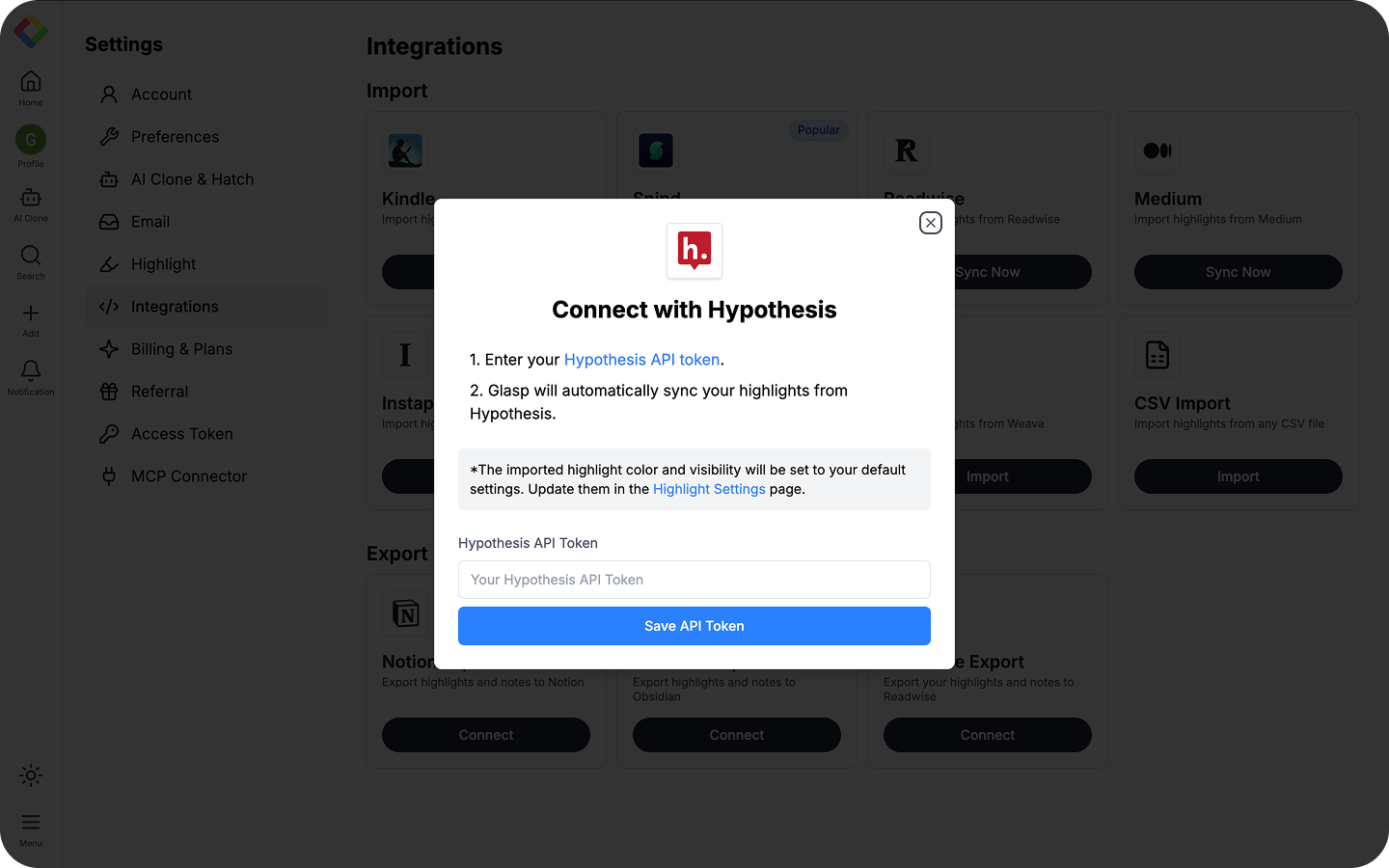
Full walkthrough: How to Import Highlights from Hypothesis into Glasp
Step 5: Import from Snipd (Mobile)
Snipd is an AI podcast player that saves any insight with a tap of your headphones, and it syncs to Glasp from its own app. Open the Snipd app, go to the Account tab (bottom-right), tap Settings at the top, then tap Export & Sync and choose Glasp Integration.
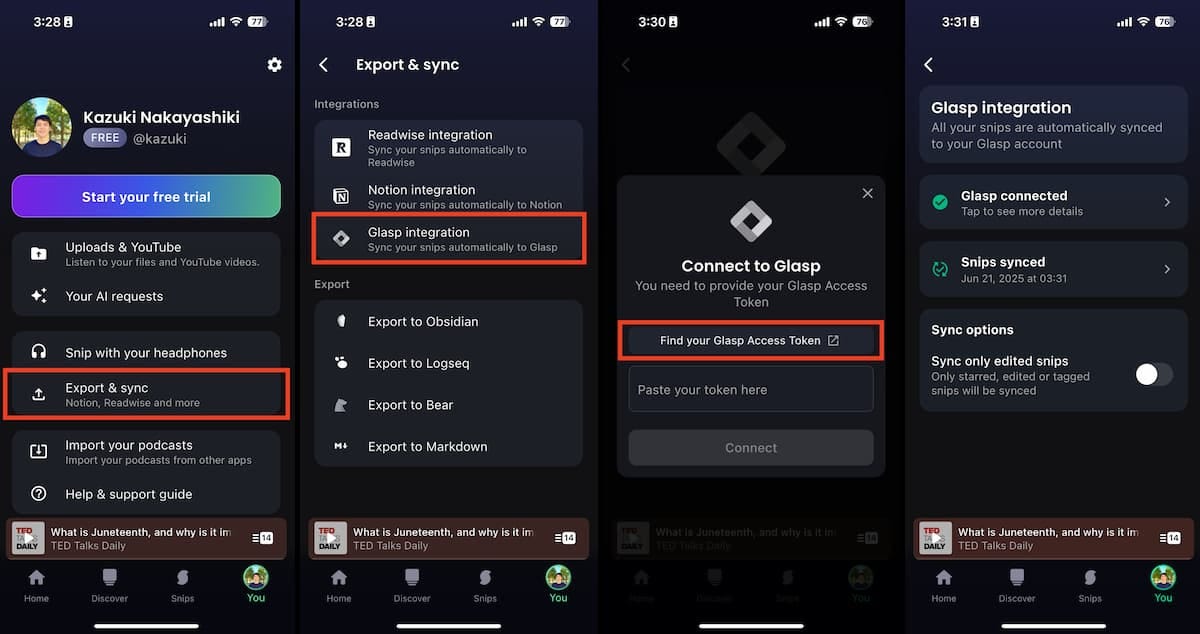
Tap Find your Glasp Access Token to grab your token from Glasp settings, then tap Connect. Done.
Tip: Each import is manual, not automatic. Whenever you add new highlights in one of these apps, just run the import again to bring them over.
Full walkthrough: How to Sync Your Snipd Highlights with Glasp
NOTE: Imported highlights are public by default. If you’d rather keep them private, adjust your visibility settings or upgrade to a Pro plan before you sync.
Everything you’ve ever highlighted, finally in one library, ready to be searched, exported, and handed to your AI.
If you haven’t already, sign up for Glasp and start bringing your highlights home.
💡 Pro Tips
Now that your highlights live in one place, put them to work:
👉 Connect Glasp to Claude & ChatGPT with the MCP Connector: Let AI answer using what you’ve actually read
👉 Ask Your AI Clone: Turn your highlights into a personal AI you can chat with
👉 How to Chat with PDF on Glasp: Upload any PDF and ask questions, get summaries, keep highlights
Partner With Glasp
We currently offer newsletter sponsorships. If you have a product, event, or service you’d like to share with our community of learning enthusiasts, sponsor an edition of our newsletter to reach engaged readers.
If you've got highlights scattered across Medium, Snipd, Instapaper, or Hypothesis, this guide brings them all into one searchable library. Most people finish it in under 3 minutes.
Stuck on any step? Reply here and I'll walk you through it.
No Substack account? Join us on Reddit instead: https://www.reddit.com/r/glasp/