


* Today’s newsletter is brought to you by Bright Data.
One MCP to access the Web
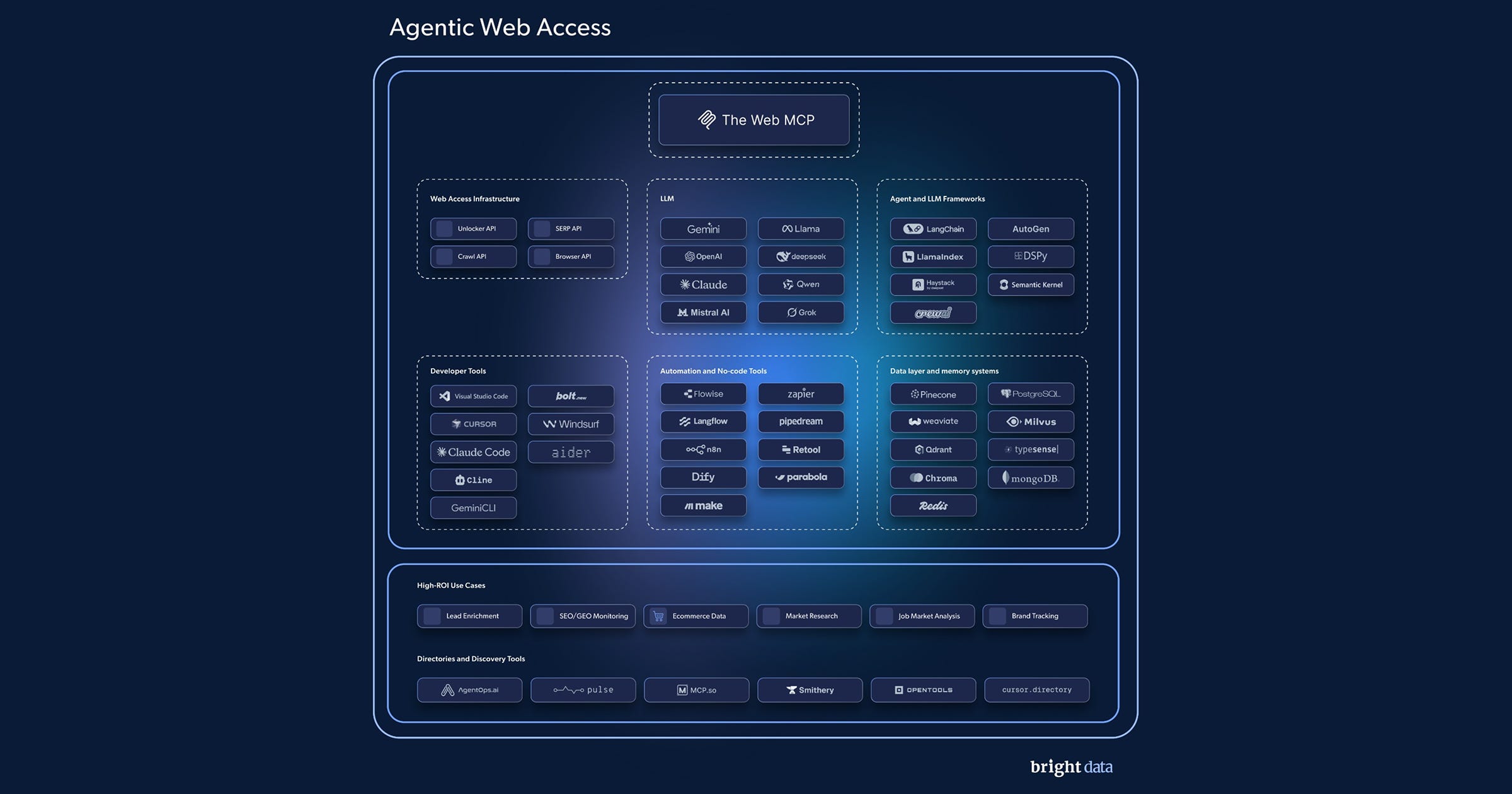
If you’re building AI agents, you’ve probably hit the same wall everyone does.
Pages don’t load.
CAPTCHAs stop your workflows.
JS-heavy sites break your scrapers.
Geo-blocks kill your data coverage.
You spend more time fighting the web than building your product.
Bright Data’s MCP Server fixes that.
Instead of stitching together proxies, browsers, and scrapers, MCP gives you one access layer between your agents and the web. You make the request. It handles the rest.
We’re excited to announce a new tutorial on Glasp: How to chat with PDF
PDFs are everywhere — research papers, reports, textbooks, ebooks. But reading them cover to cover takes time, and finding the one answer you need often means scrolling through hundreds of pages.
Glasp lets you upload any PDF and chat with it — ask questions, get summaries, and pull out insights instantly, without losing your highlights or notes.
Once set up, Glasp will:
Upload any PDF — research papers, reports, textbooks, and more
Answer your questions with citations pulled directly from the document
Upload PDFs up to 500MB and store up to 30 files for free
Search across your PDF and web highlights from your profile page
In this tutorial, we’ll walk you through how to upload a PDF to Glasp and start chatting with it — so you can get to the ideas that matter, faster.
If you want to reread or highlight this newsletter, save it to Glasp.
🪄 How It Works
Step 1: Sign up for Glasp
Select a browser: Google Chrome, Brave, Safari, Microsoft Edge, etc.
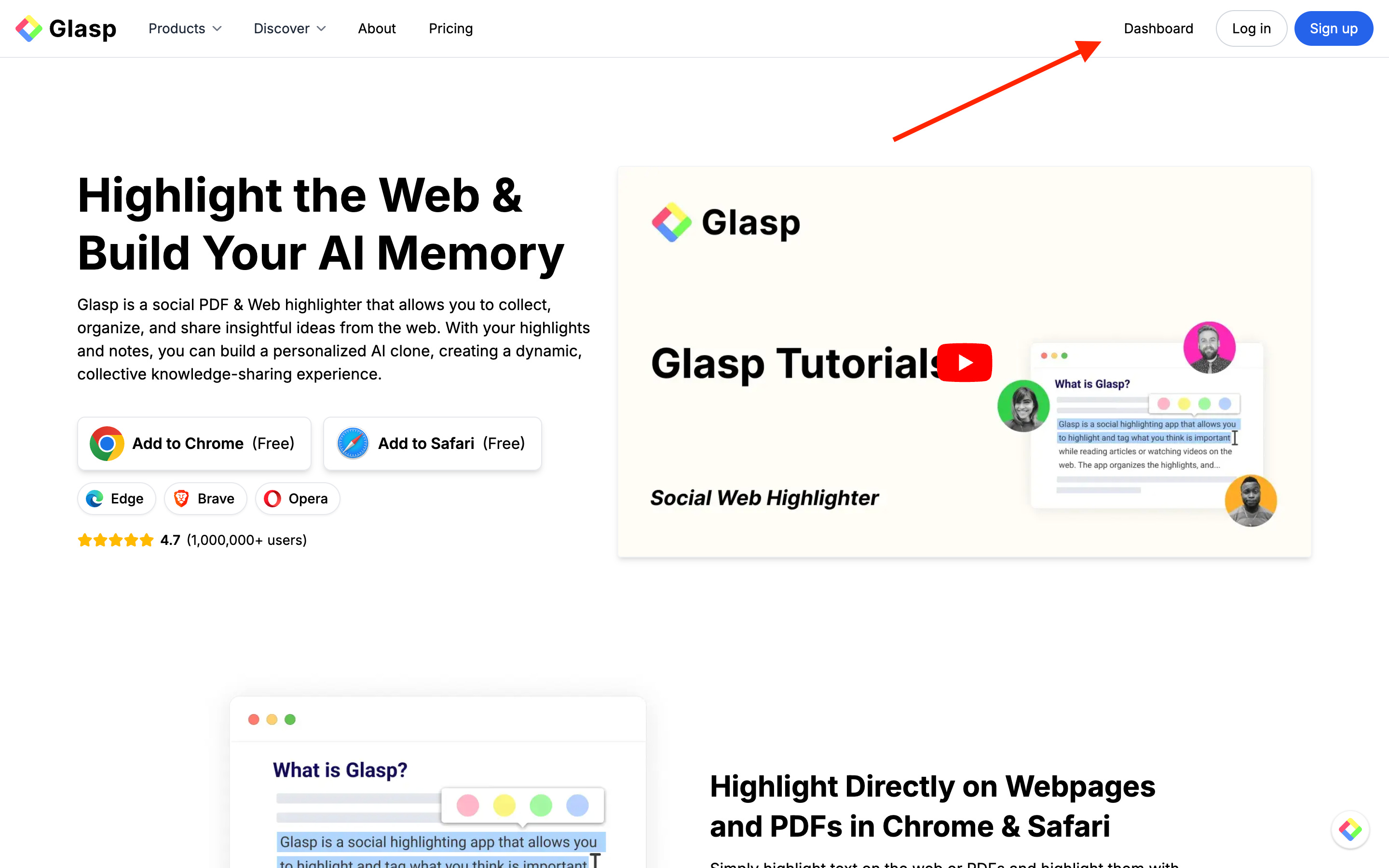
On your search tab, type in “glasp.co“ and you will be automatically directed to the page of Glasp. Or access it from the link below.
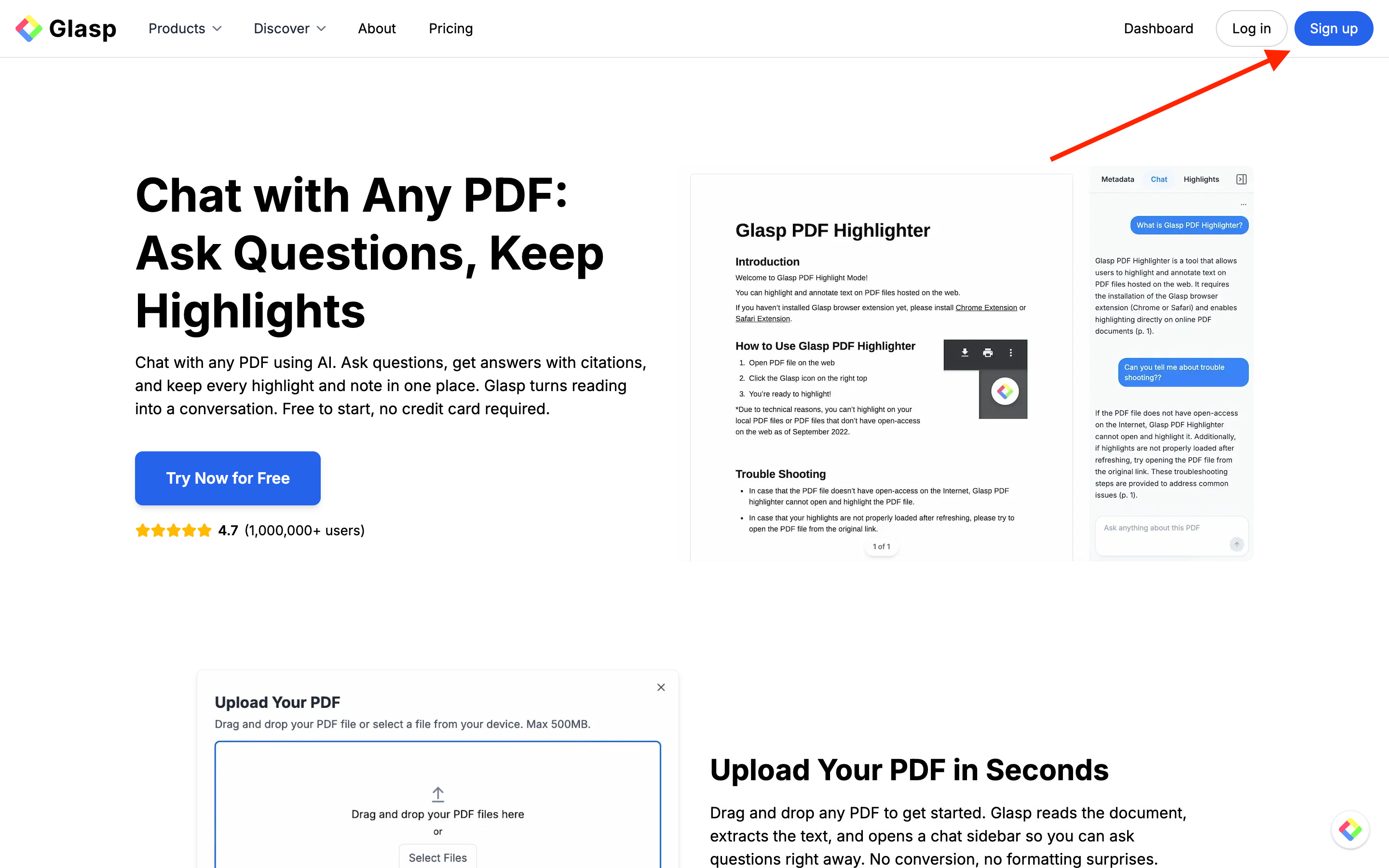
Upon reaching it click “Sign up” and continue using your Google Account.
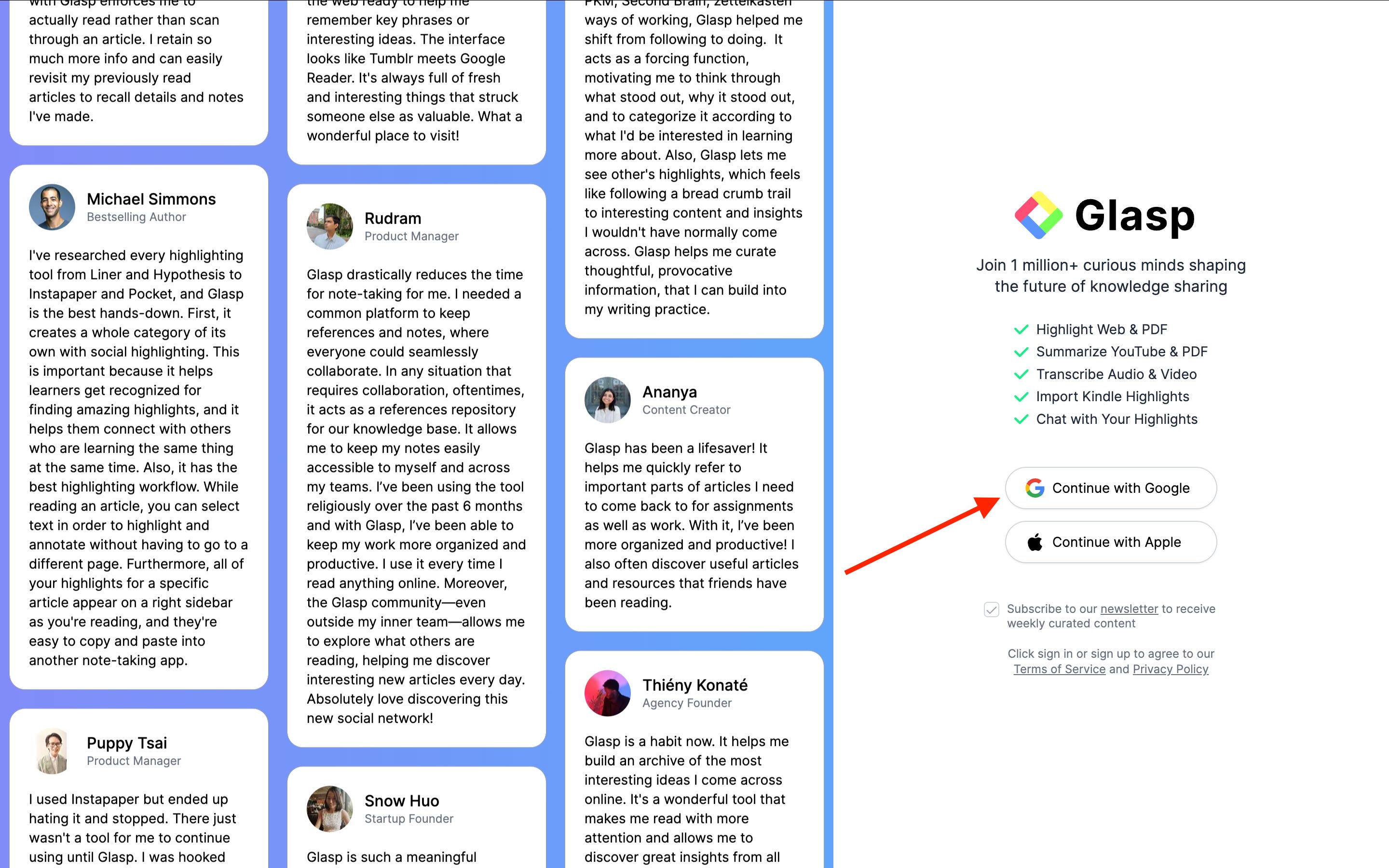
You can sign up for Glasp with either Google Sign-in or Apple Sign-in. If you’re not an iPhone/iPad user, we strongly recommend you use Google Sign-in.
After finalizing your account, please go to your profile page by clicking “Dashboard” at the top right. If you cannot see the “Dashboard,” please visit glasp.co again.
Step 2: Install the Glasp extension to your browser
Click Add to Chrome to install the Glasp extension.
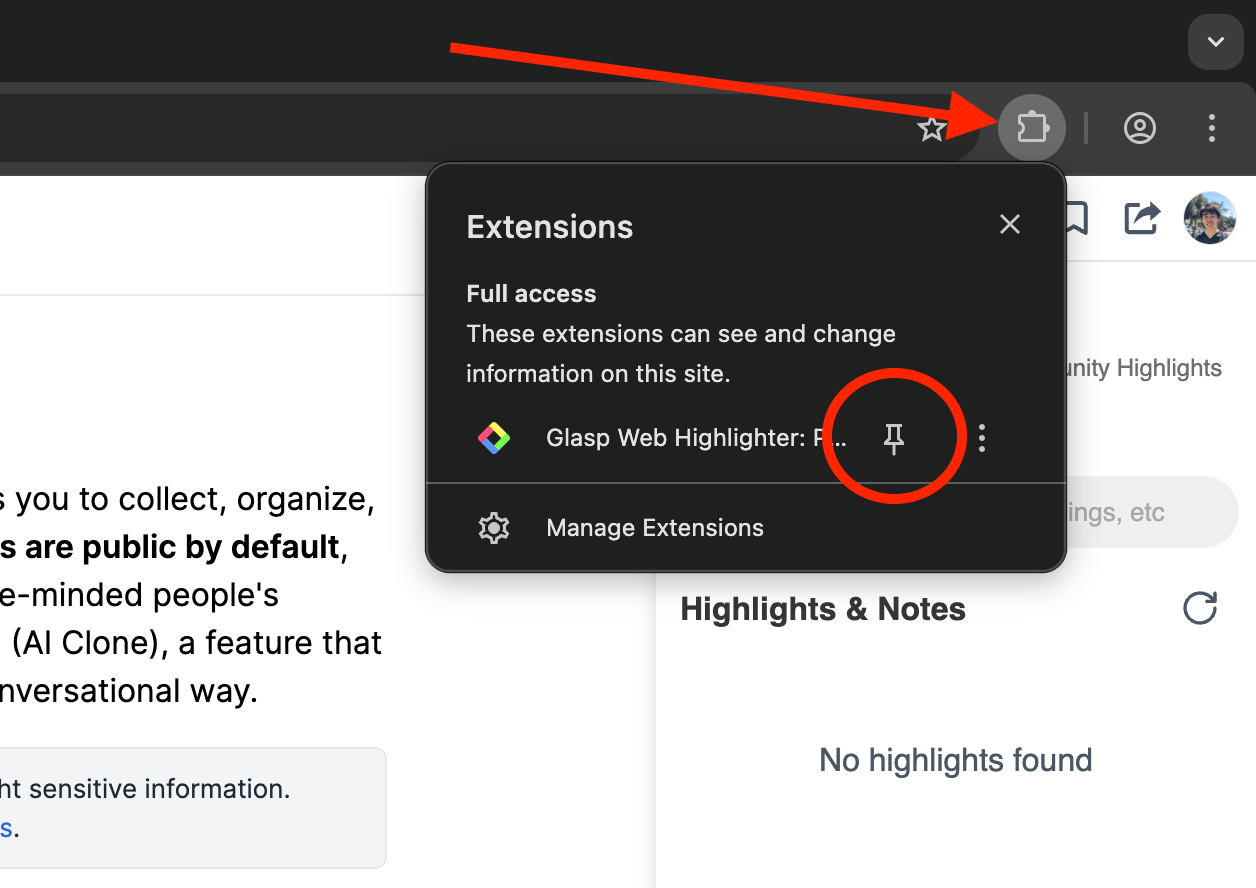
After installing the extension, make sure to pin it to your toolbar. This makes it easier to open Glasp from the sidebar. If you’re prompted to sign in to Glasp in the sidebar, simply sign in with your account.
Step 3: Go to your Glasp profile
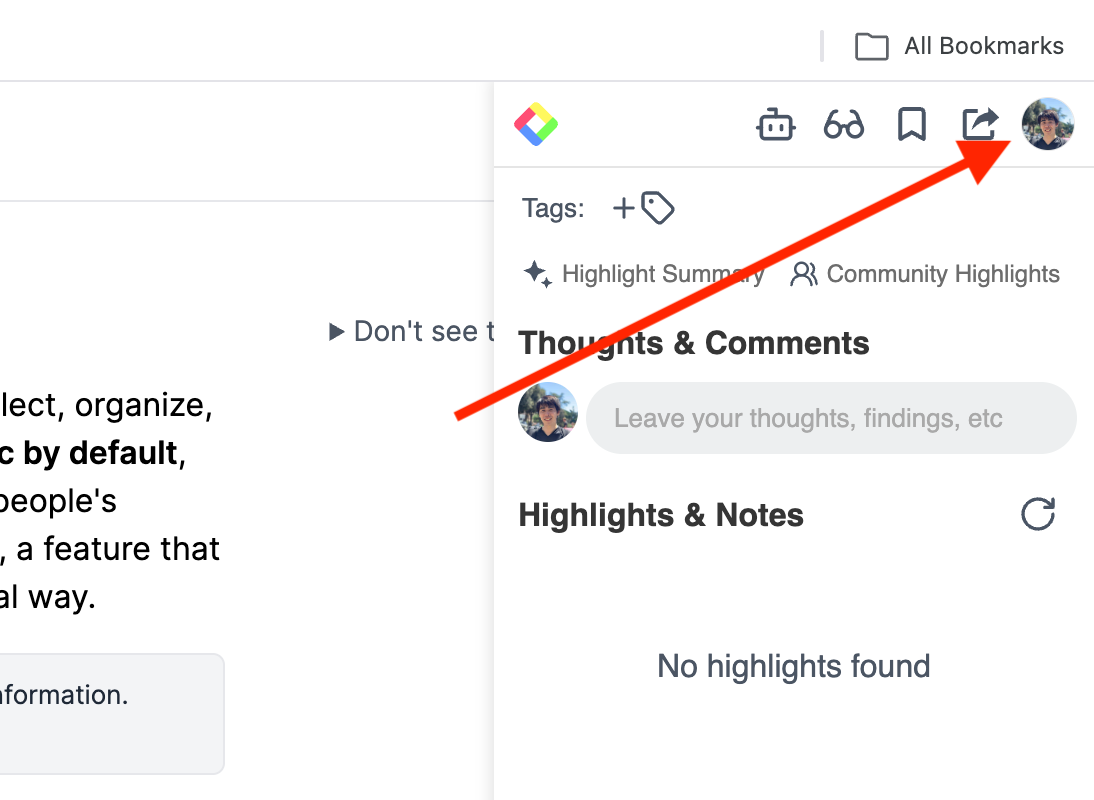
Once you’ve installed the Glasp extension and signed in, click the Profile icon in the sidebar to open your profile page.
This will take you to your profile page. From there, click the + button in the left sidebar.
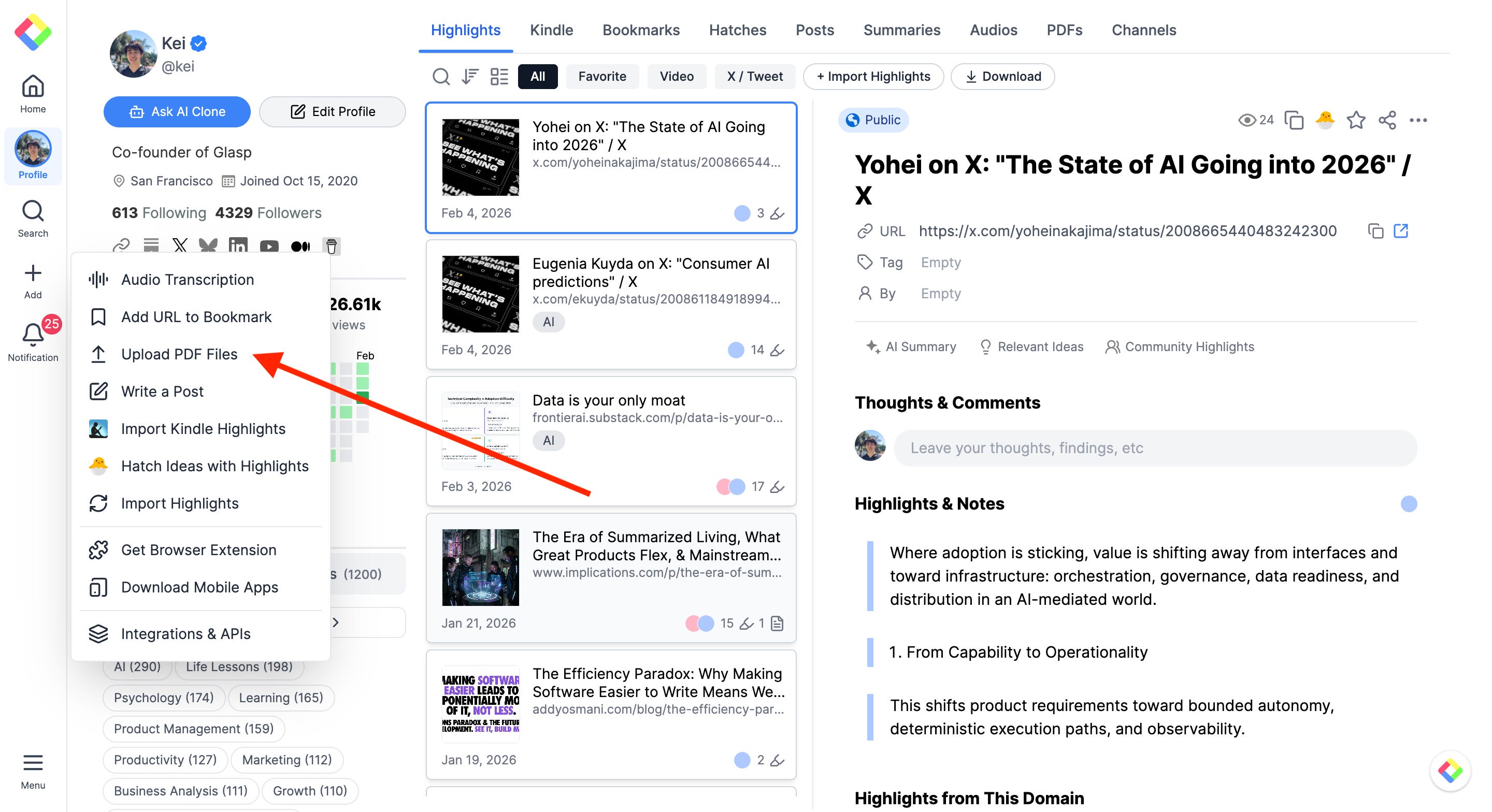
Step 4: Upload a PDF to Glasp
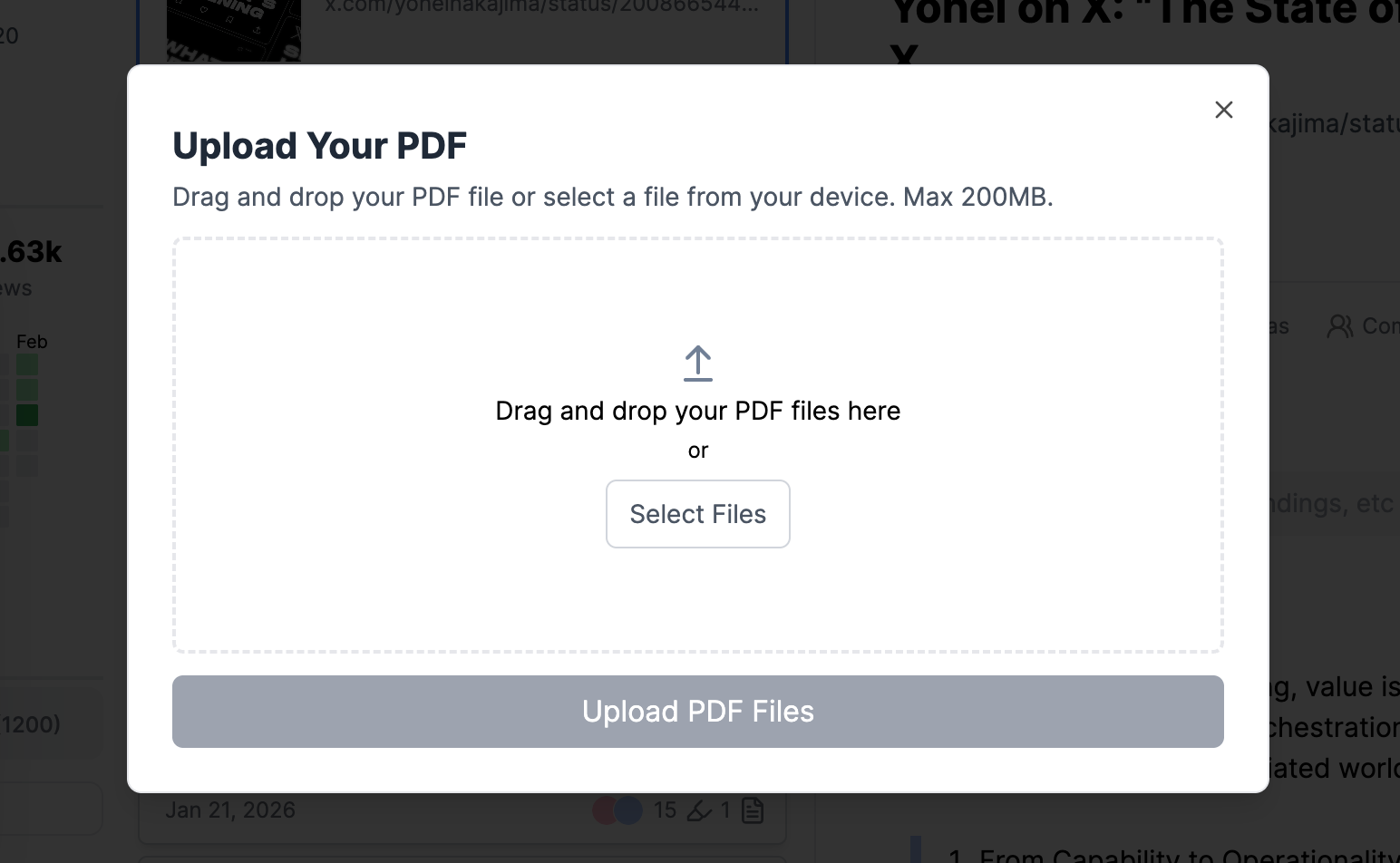
When the upload modal opens, drag and drop your PDF file into the area, or click Select Files to upload it from your device.
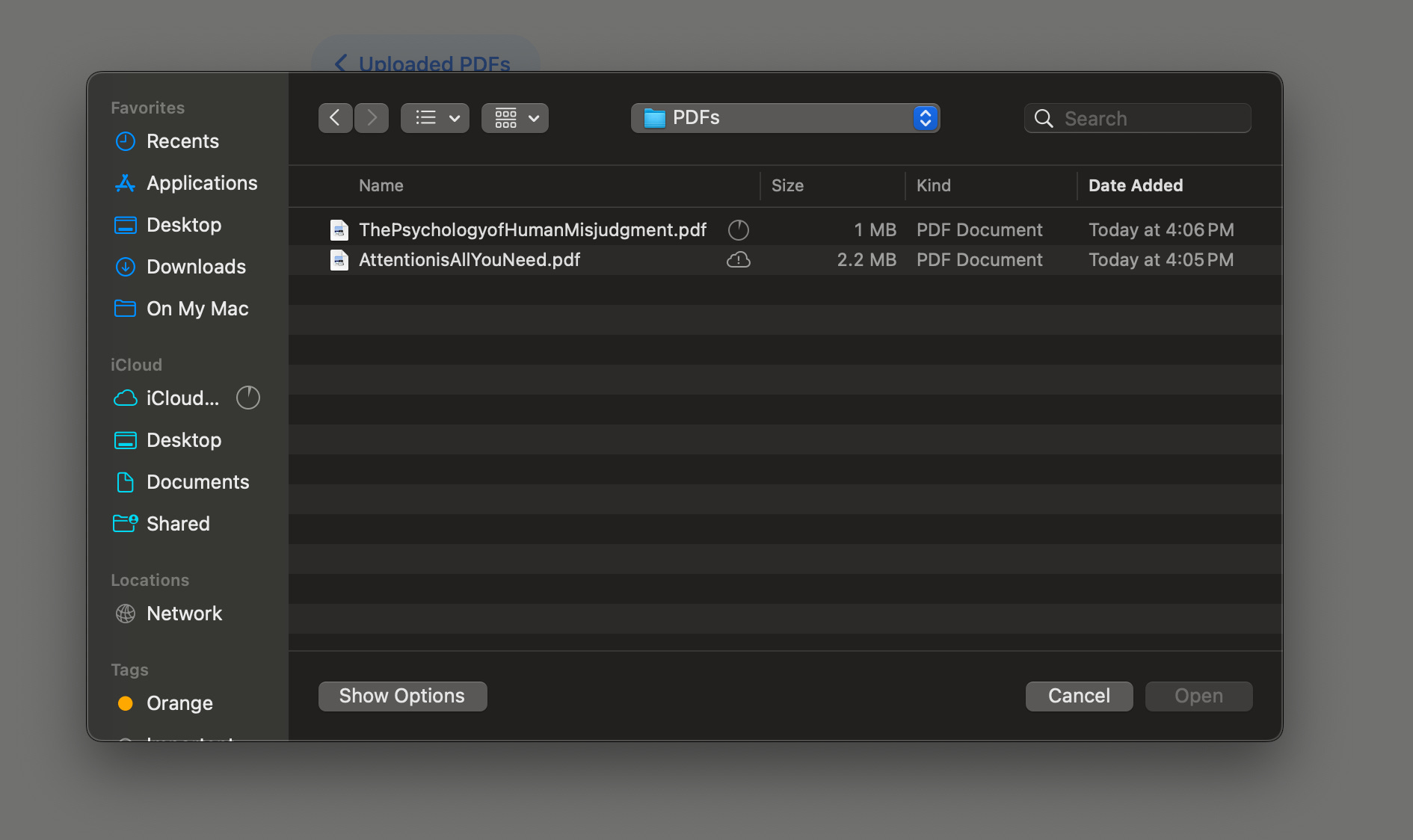
Select a PDF file from your computer to upload.
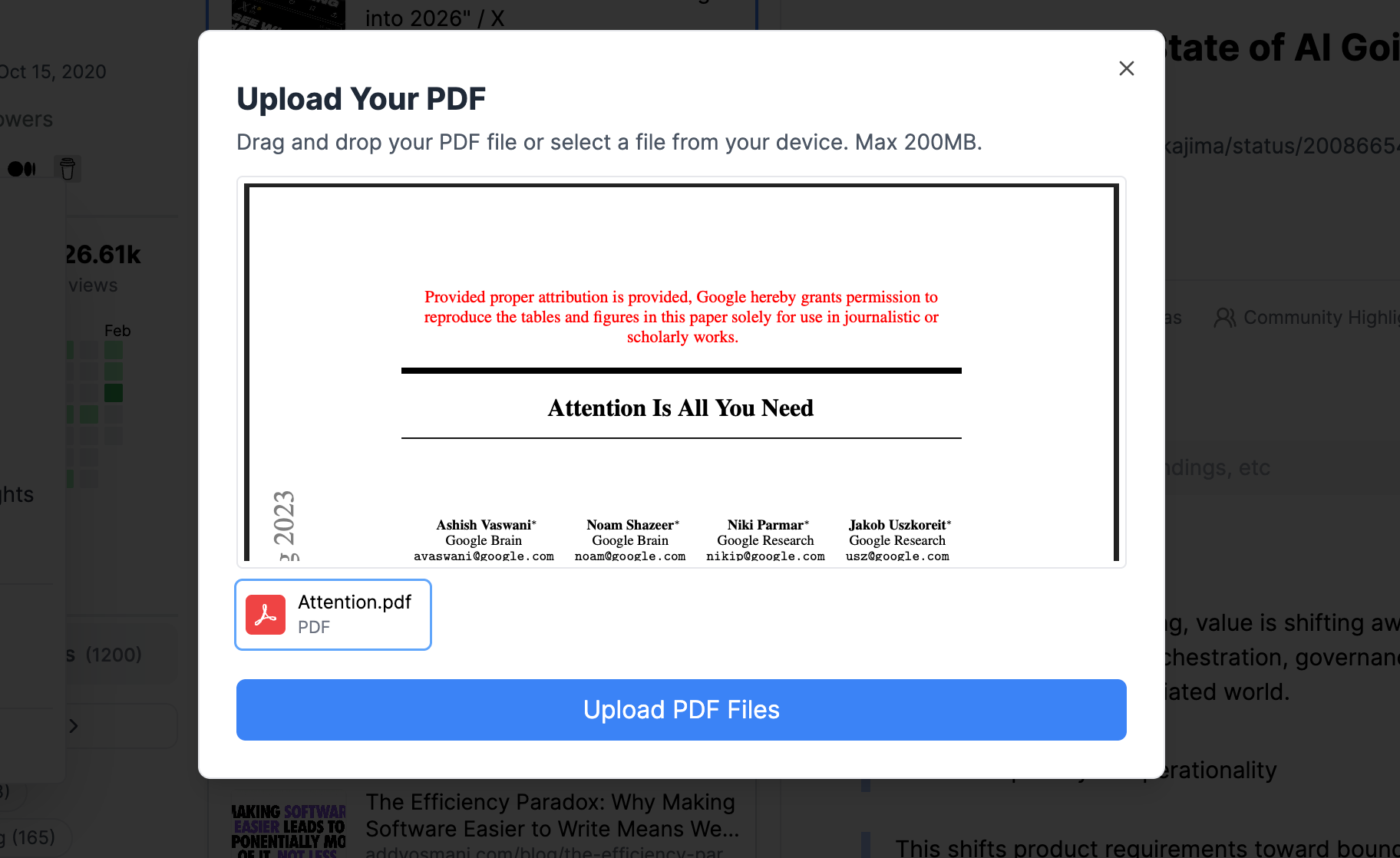
After selecting a PDF file, click Upload PDF Files in the modal. Your PDF will begin uploading to Glasp.
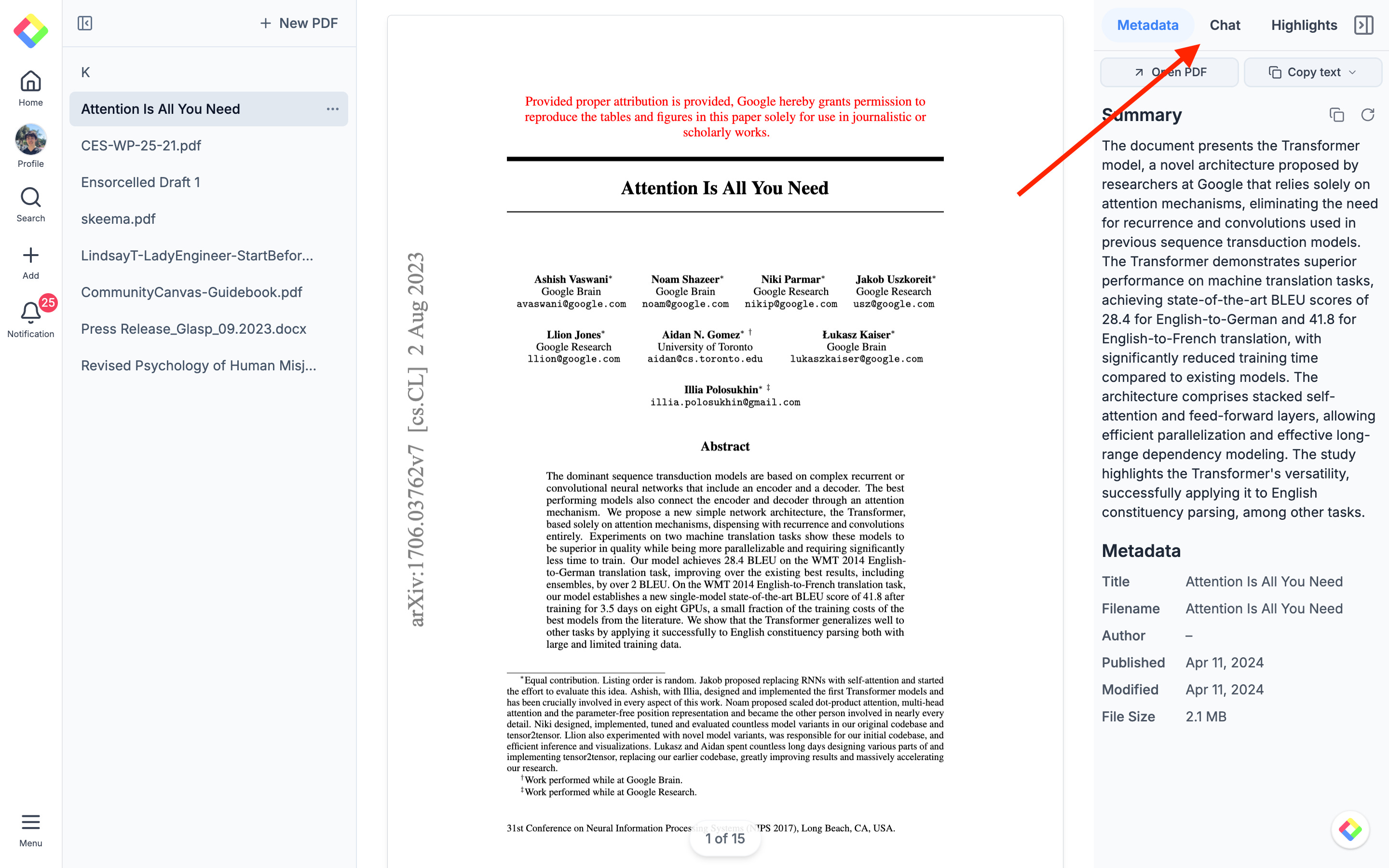
Step 5: Chat with the PDF
Once your PDF is uploaded, you’ll be taken to the page showing your uploaded PDFs. To start chatting with the PDF, please click “Chat” at the top right.
Then, type any questions about the PDF in the chat box at the bottom right.
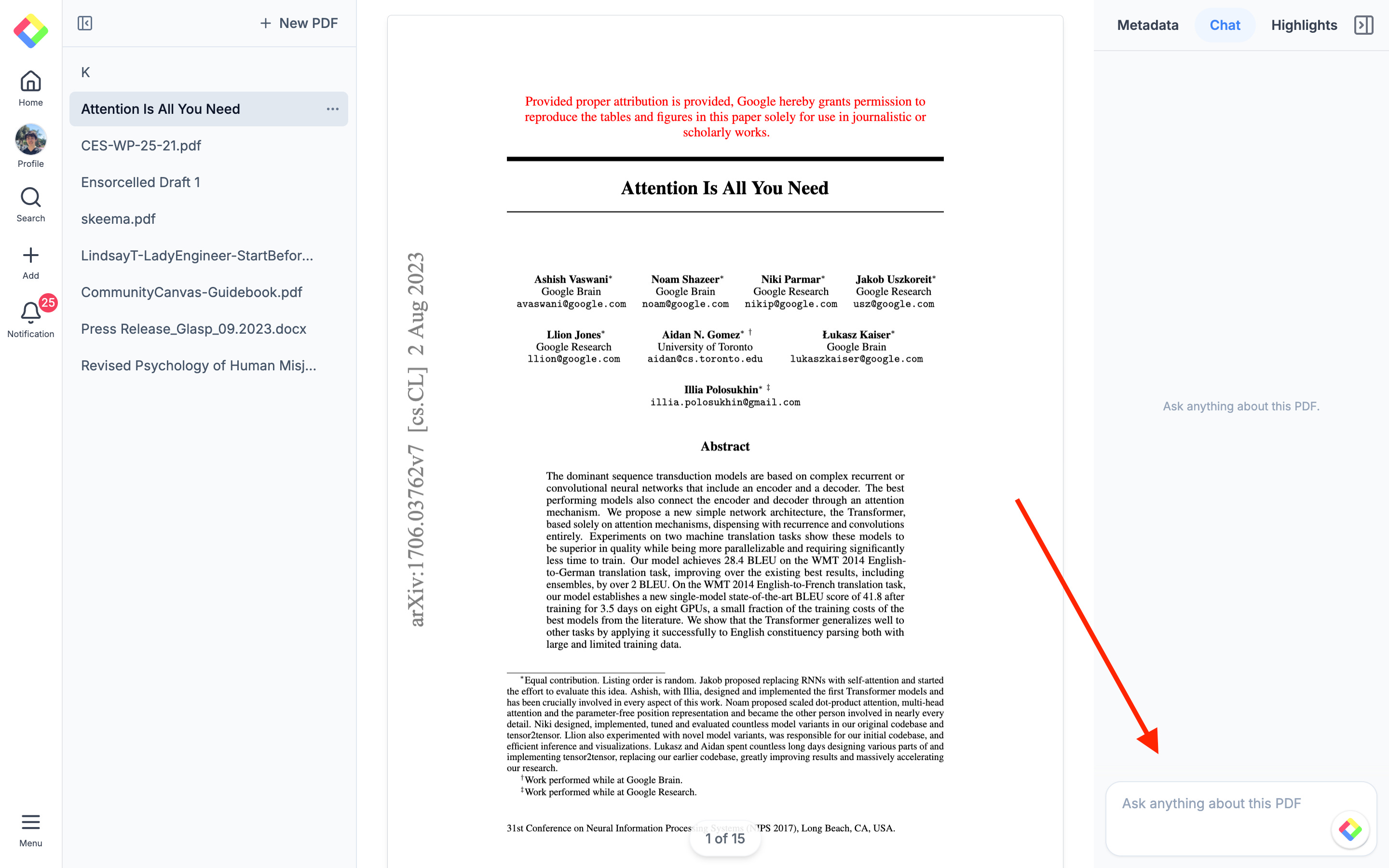
In this example, I asked "What are the key takeaways from this paper?" and Glasp returned a structured response with page citations.
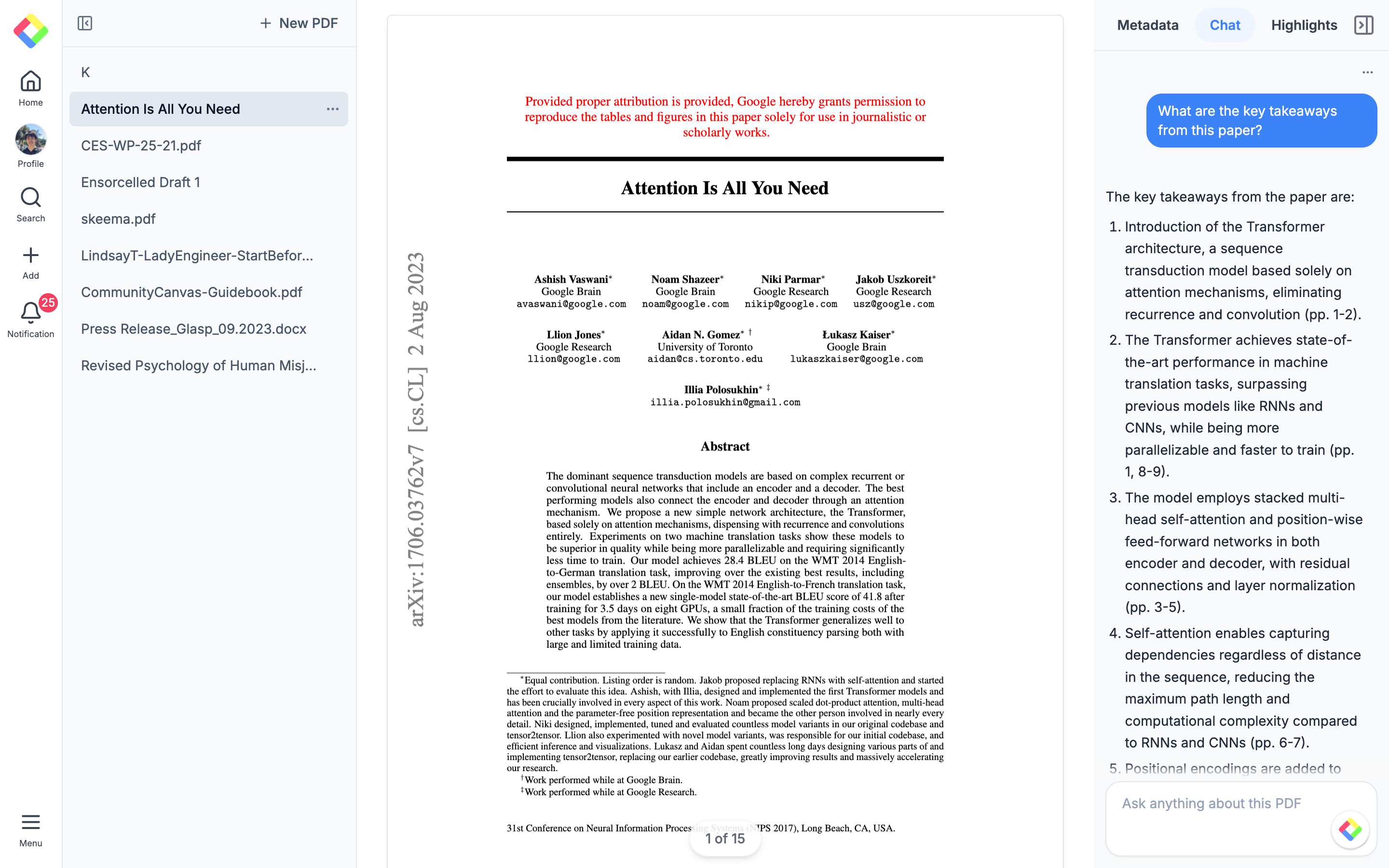
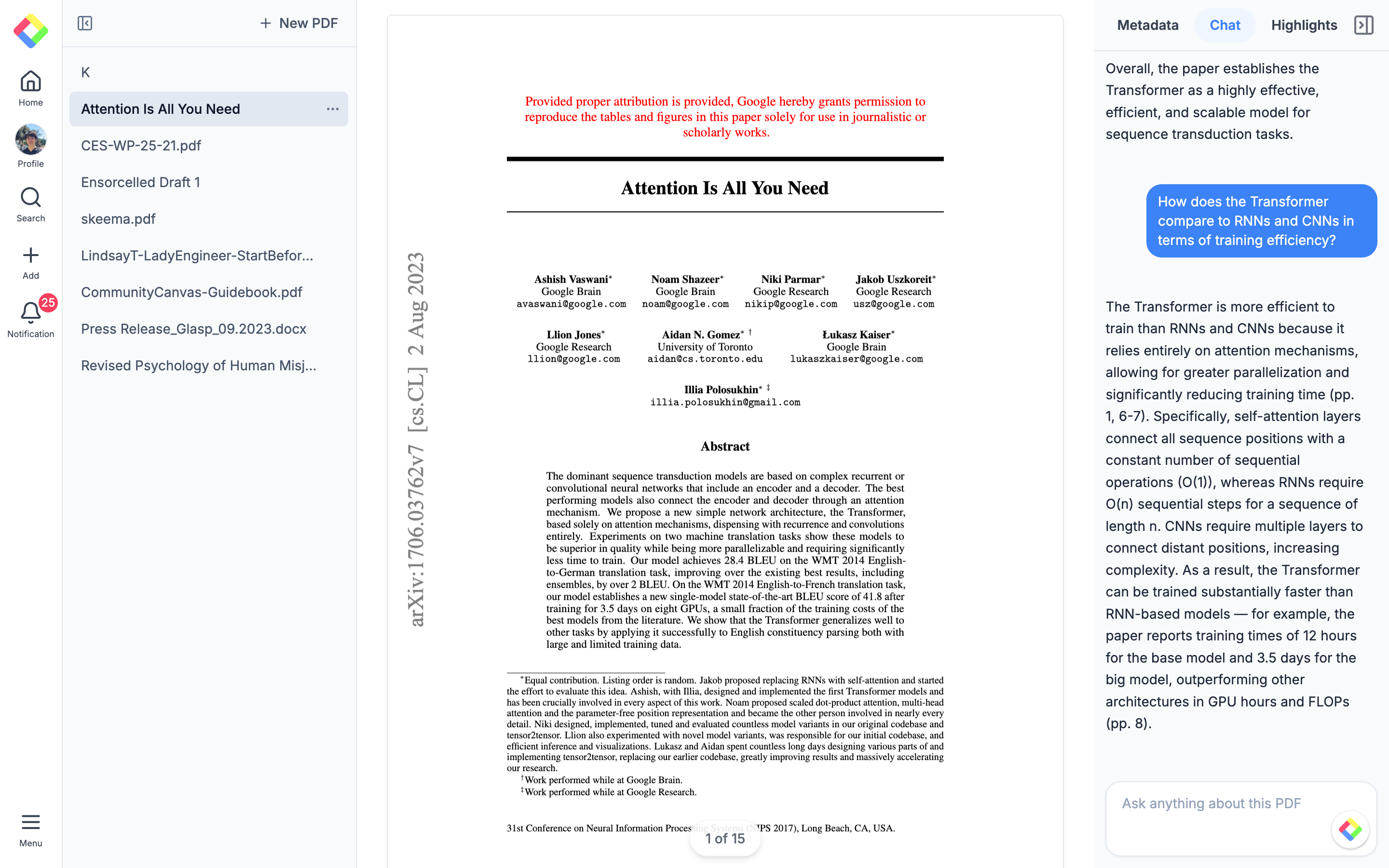
You can also ask follow-up questions to dig deeper. In this example, I asked "How does the Transformer compare to RNNs and CNNs in terms of training efficiency?" — and Glasp returned a detailed explanation with page citations.
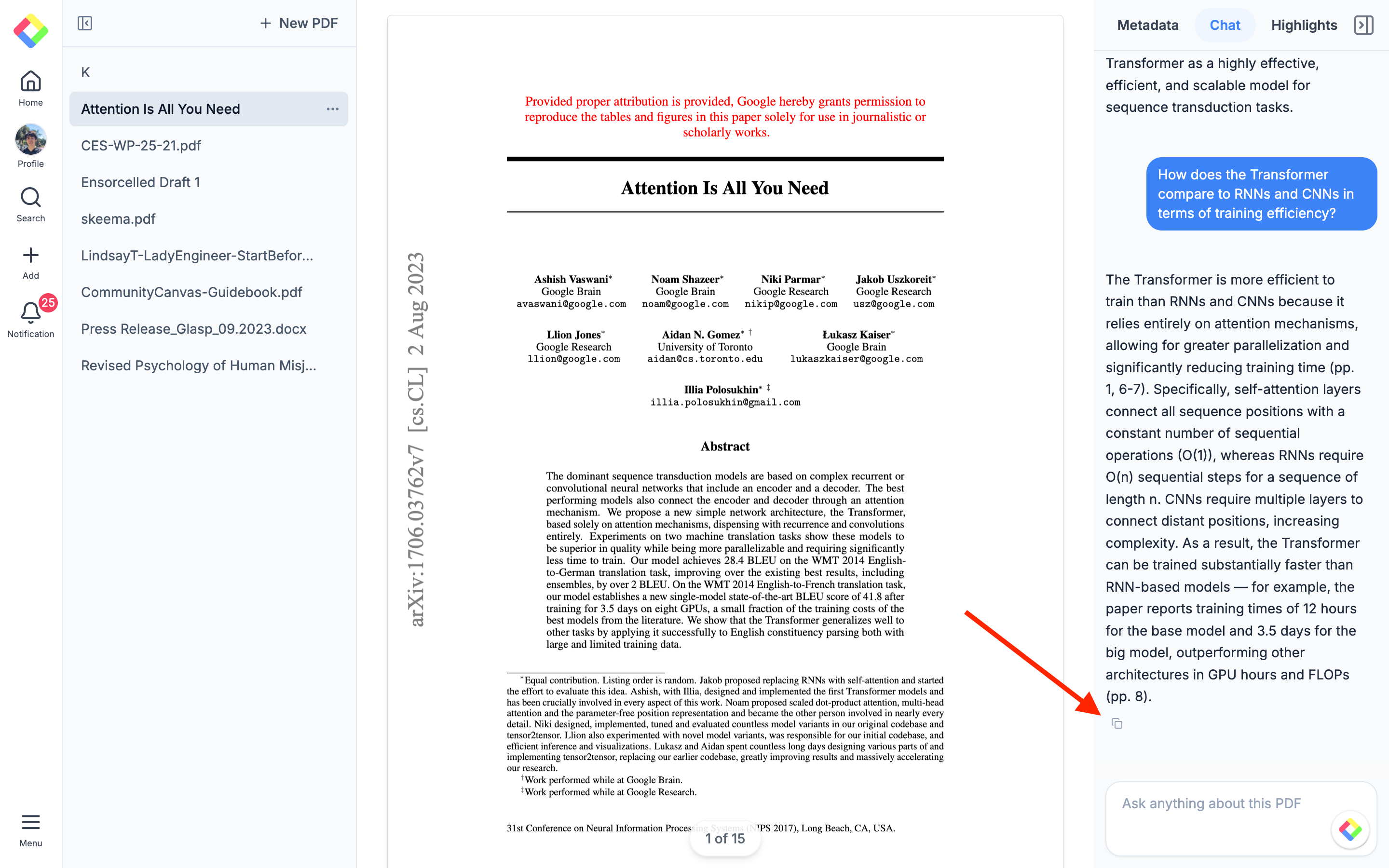
If you want to save the response, click the copy icon below it.
Step 6: Copy the PDF text
If you want to copy the full text of the PDF, click Copy text at the top right. You can choose from three formats: Plain text, Markdown, or XML.
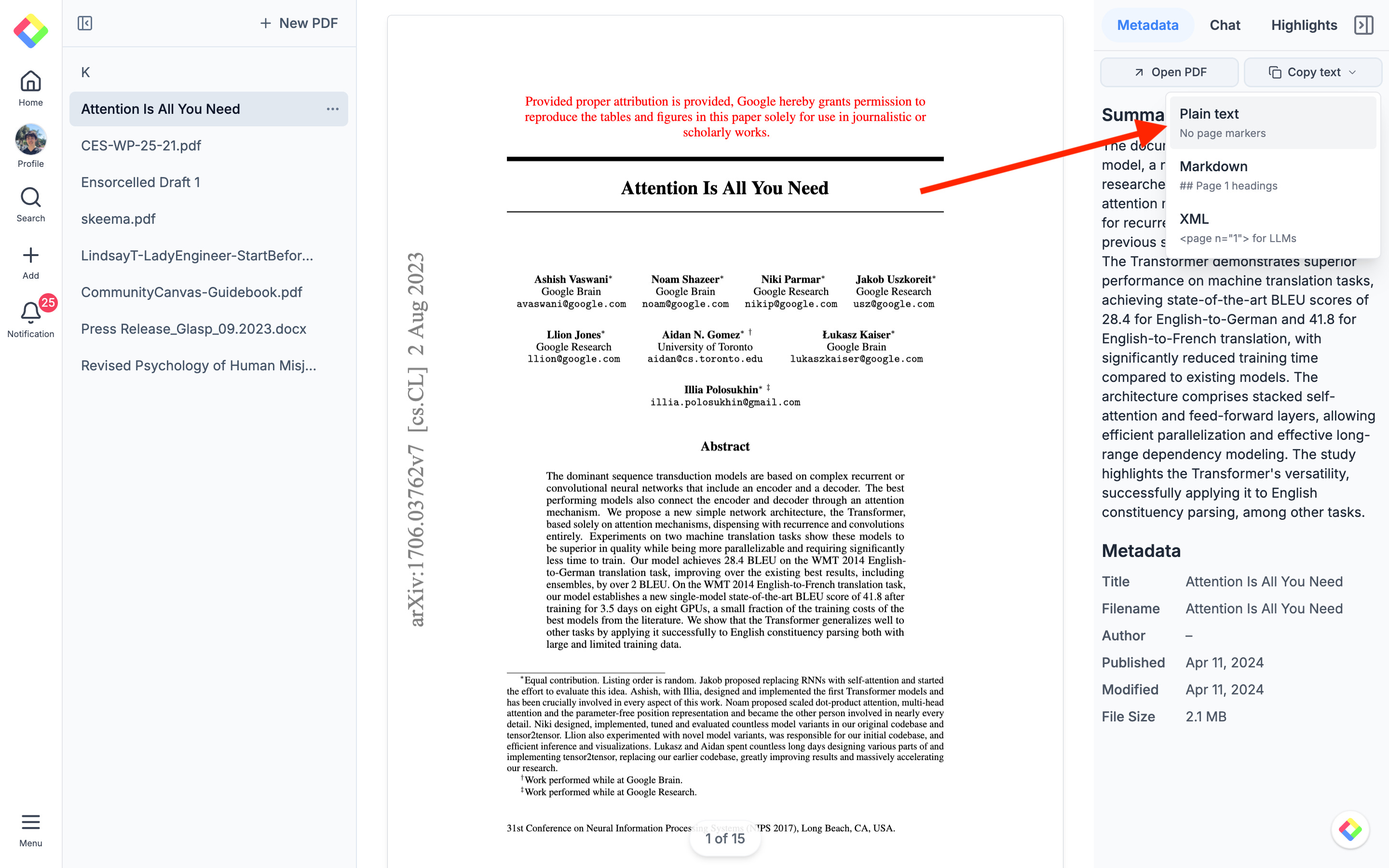
Here’s an example of the Plain text format pasted into Obsidian.
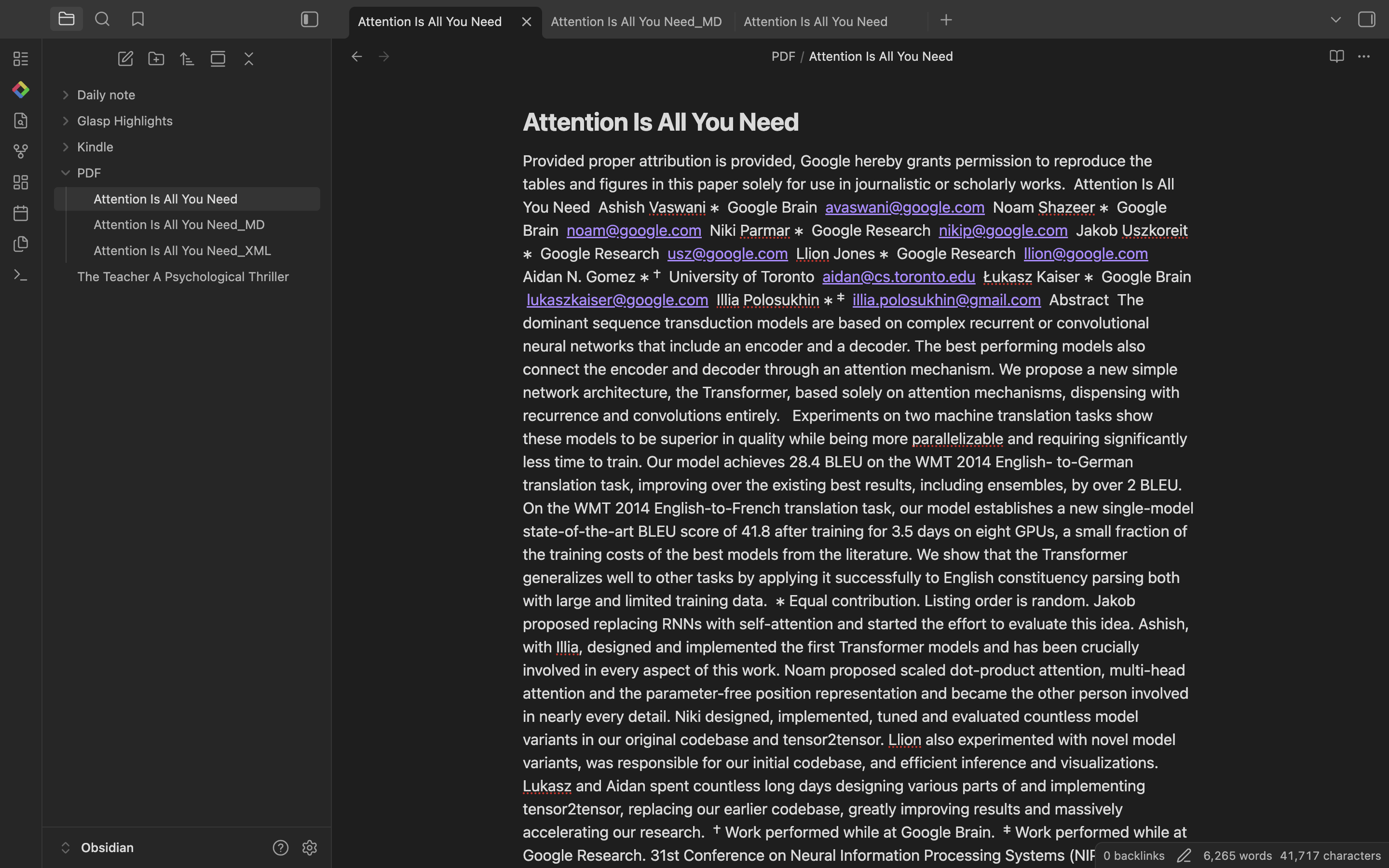
Here’s an example of the Markdown format pasted — notice how each page is formatted as a heading (## Page 1), making it easy to navigate long documents.
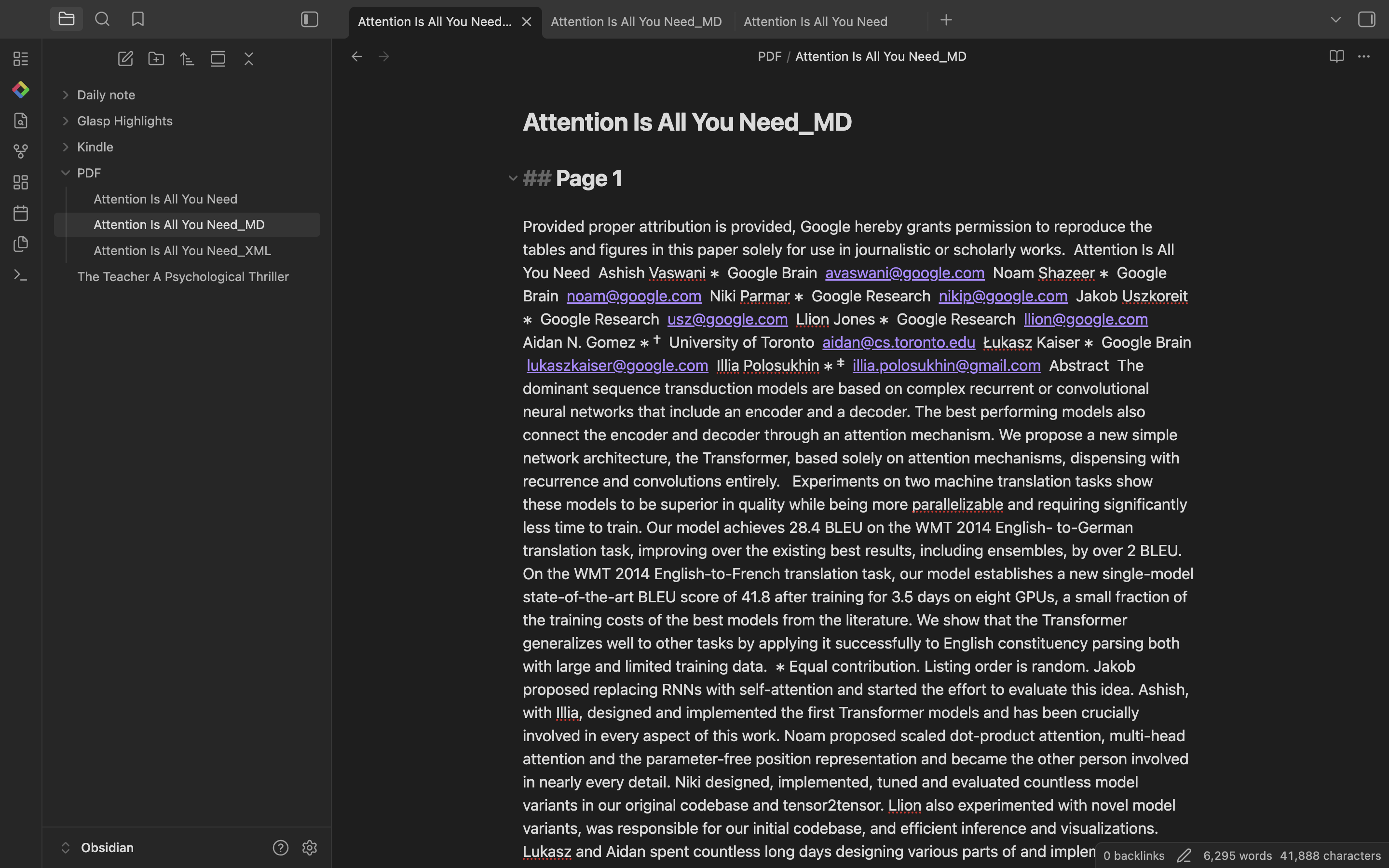
Here's an example of the XML format pasted into Obsidian — with page markers (<page n="1">) designed for LLMs.
Step 7: Highlight the PDF
To highlight text, select any sentence in the PDF. A popup with a four-color palette will appear—click the color you’d like to use.
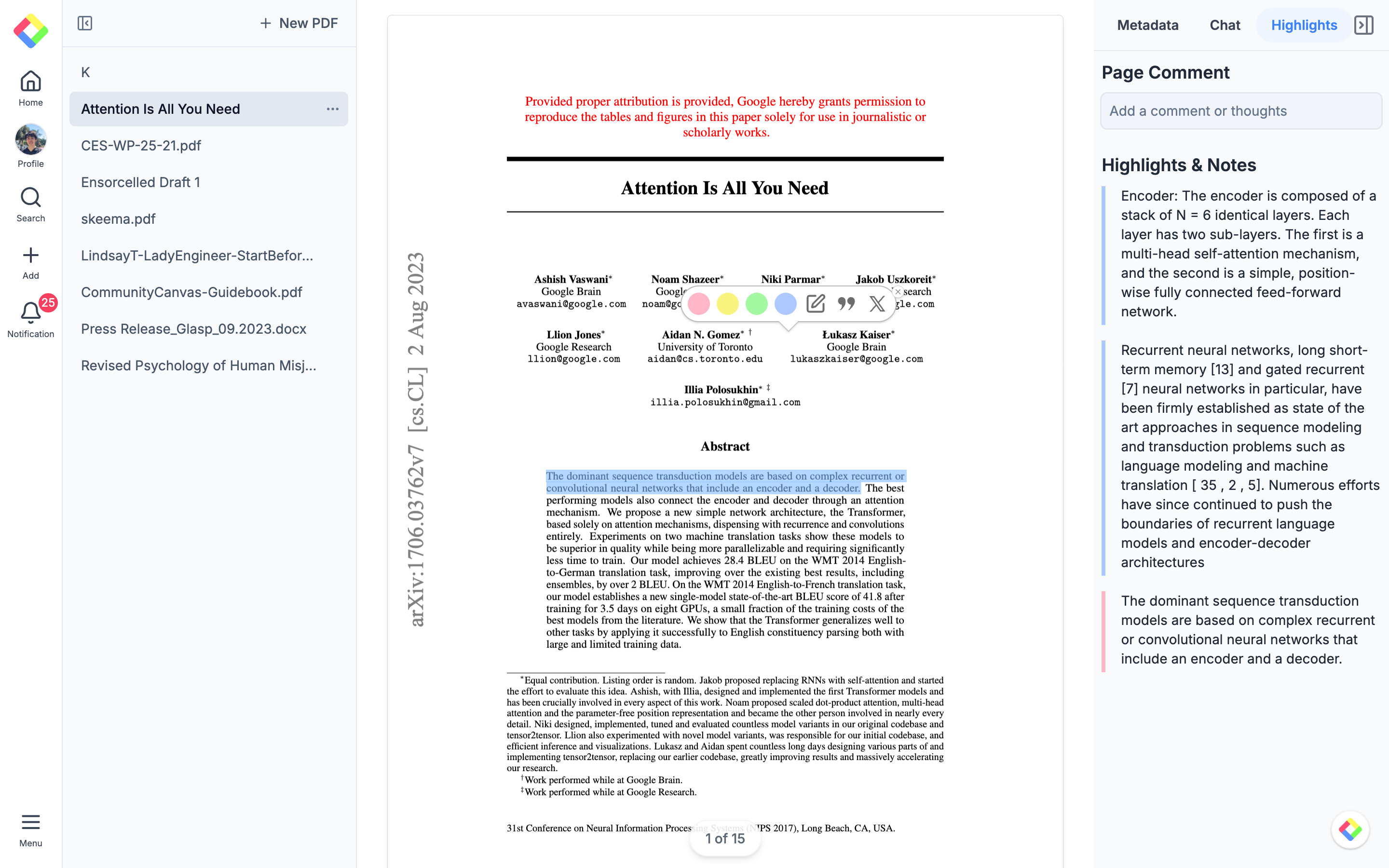
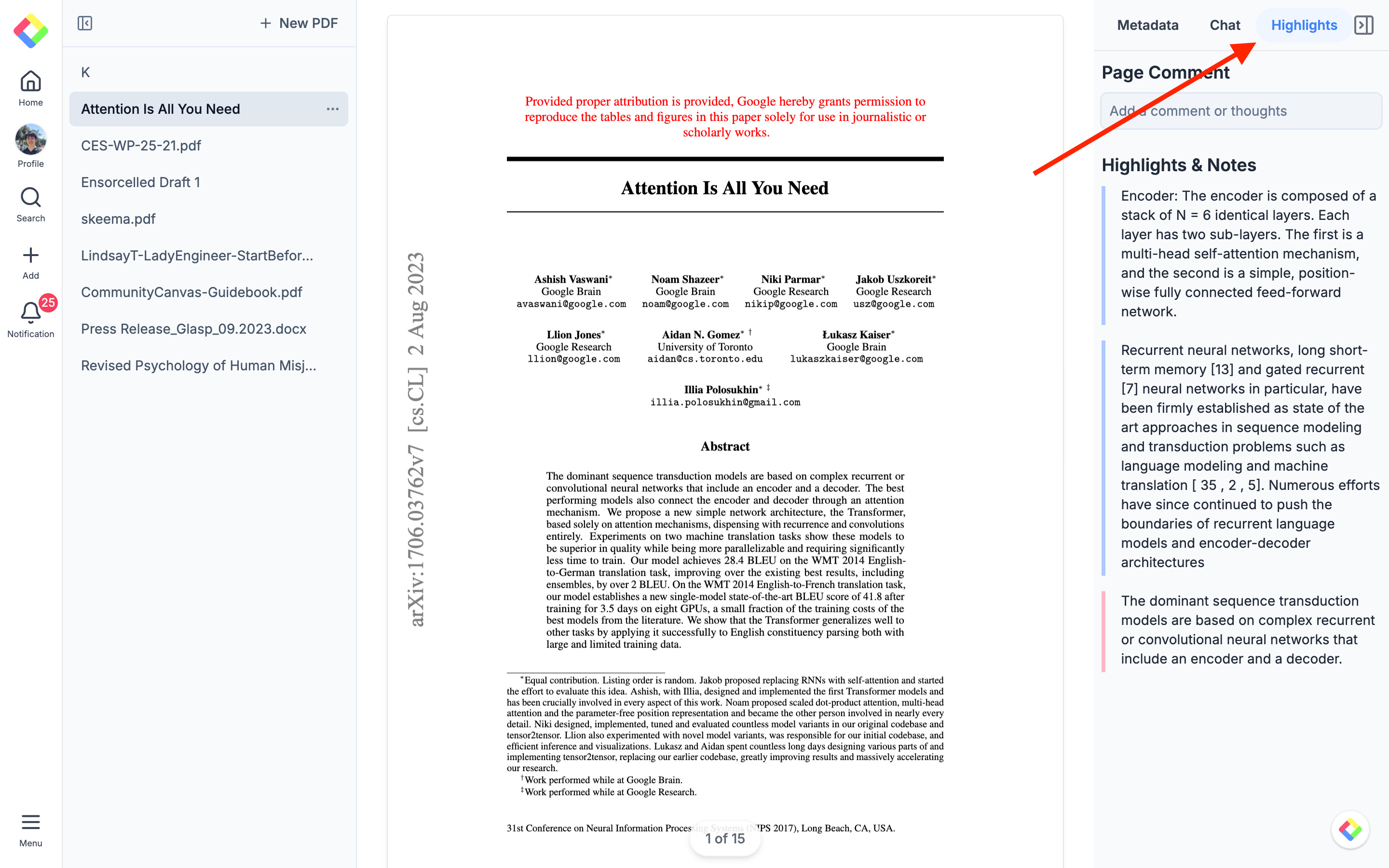
To view all your highlights, click Highlights in the top-right corner.
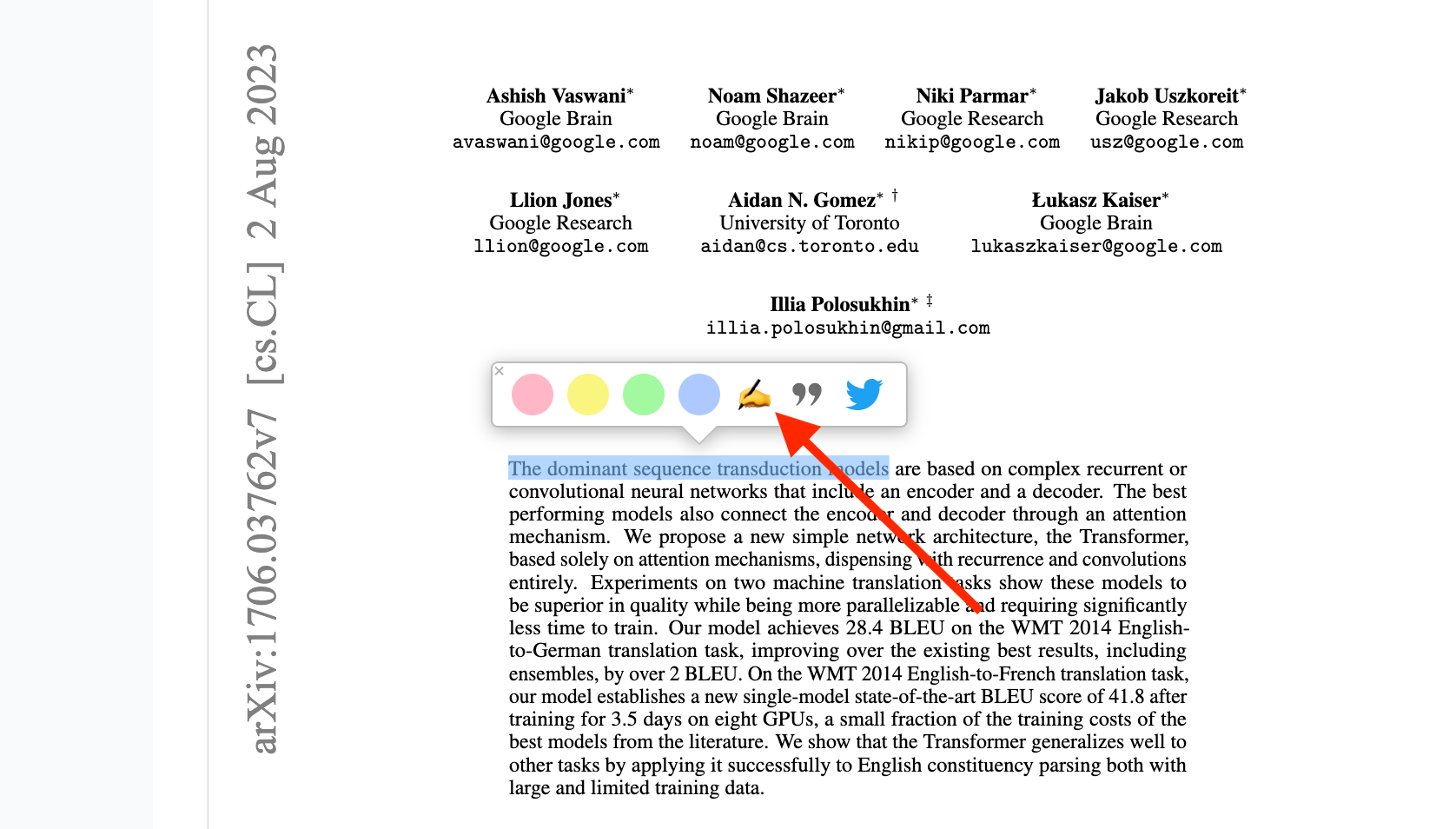
You can also add notes to each highlight. Click the pencil icon in the popup to write your note.
Glasp is built around sharing knowledge publicly, so highlights from web content are usually visible to others. However, PDFs you upload and highlight in Glasp are saved privately and are not visible to anyone else.
Step 8: Search highlight
Glasp also lets you search across all your highlights — from PDFs, web pages, and YouTube videos — in one place. To start, click the Profile icon in the left sidebar.
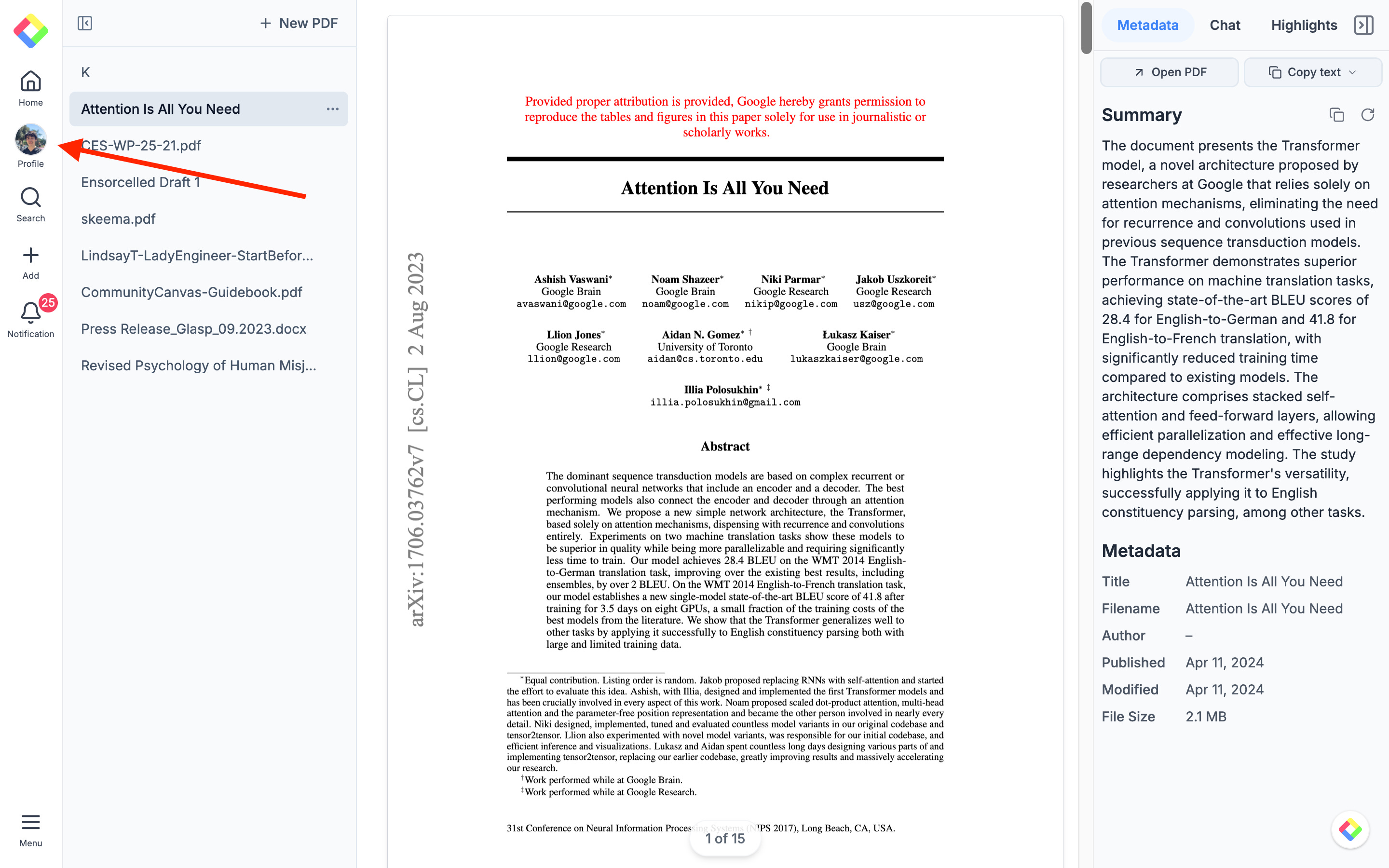
On your profile page, click the Search icon at the top of the Highlights tab.
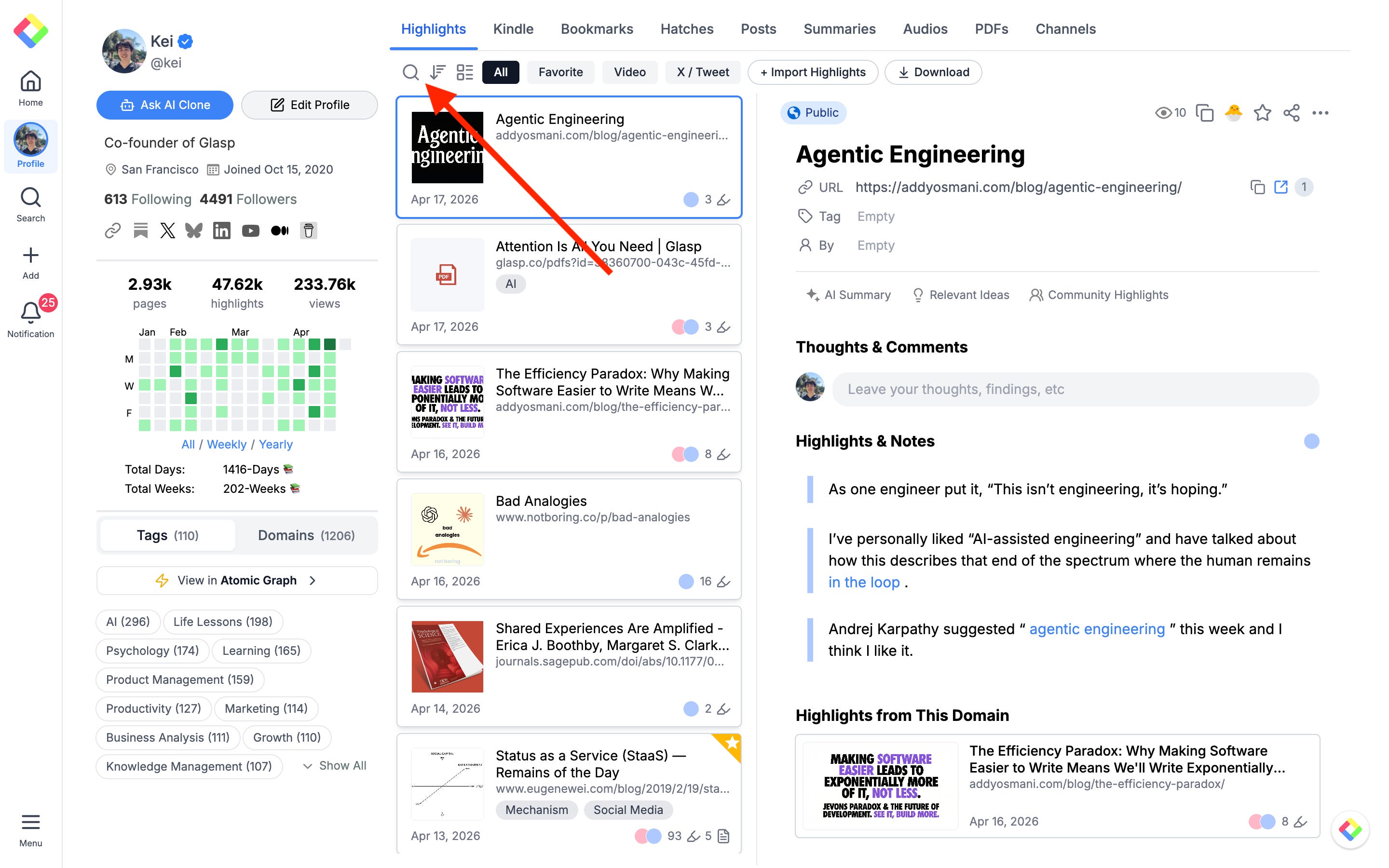
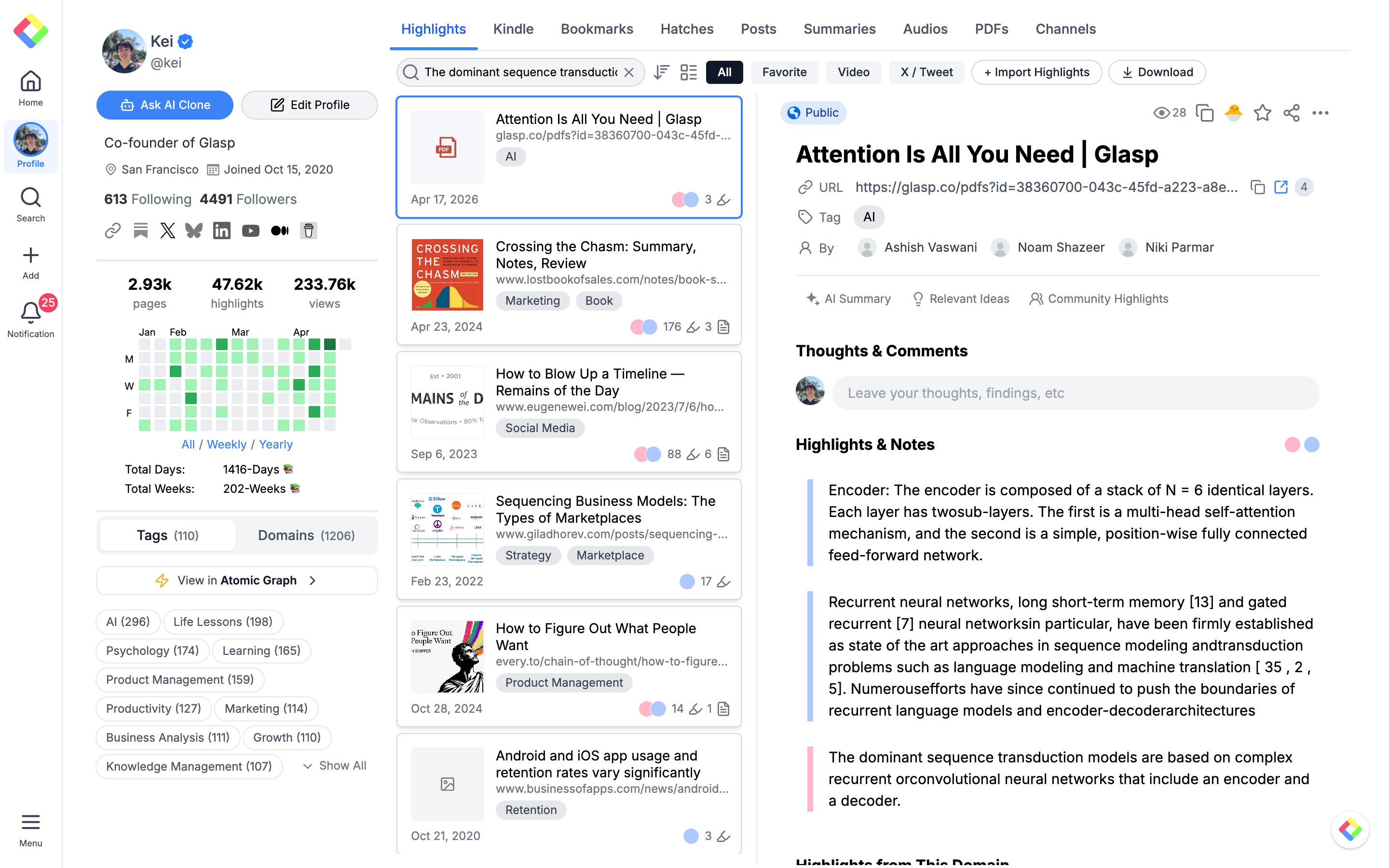
Then, type your search term in the search bar. Glasp will return matching highlights across all your sources — PDFs, web pages, books, and YouTube videos — in one unified list.
Your PDFs shouldn’t stay locked in your downloads folder.
With Glasp’s Chat with PDF, you can upload any document, ask questions, and turn dense PDFs into reusable knowledge — all while keeping your highlights and notes in one place.
If you haven’t already, sign up for Glasp and start making the most of everything you read.
💡 Pro Tips
Go further with these resources:
👉 How to Highlight PDFs on Glasp — Highlight and save PDFs you find on the web
👉 How to Bulk Download YouTube Transcripts — Turn your YouTube videos into reusable text in seconds
👉 How to Import Kindle Highlights into NotebookLM with Glasp — Use your book highlights as sources for AI-powered research
Partner With Glasp
We currently offer newsletter sponsorships. If you have a product, event, or service you’d like to share with our community of learning enthusiasts, sponsor an edition of our newsletter to reach engaged readers.
It's so useful!
Research papers, contracts, long reports: this works on all of them. Upload the PDF and start asking questions.
Tell me what kind of documents you tried it on. I'm genuinely curious about the use cases.
No Substack account? We're also on Reddit: https://www.reddit.com/r/glasp/