

We’re excited to announce a new tutorial on Glasp: How to Import Kindle Highlights into NotebookLM with Glasp.
NotebookLM is only as good as what you feed it. Most people feed it PDFs and web pages they have not read closely. Meanwhile the best material they own is sitting in Kindle, already filtered by their own attention: the passages they stopped and marked.
Picture this. Instead of uploading a whole book and asking NotebookLM to find what matters, you upload only the lines you already decided mattered, from twelve books at once, and ask it what they have in common.
That is the workflow. Glasp pulls your highlights out of Kindle, you paste them into NotebookLM as a source, and your reading becomes something you can actually question.
Note: This tutorial was originally published on Glasp. Please refer to the original article for the latest updates.
🪄 How It Works
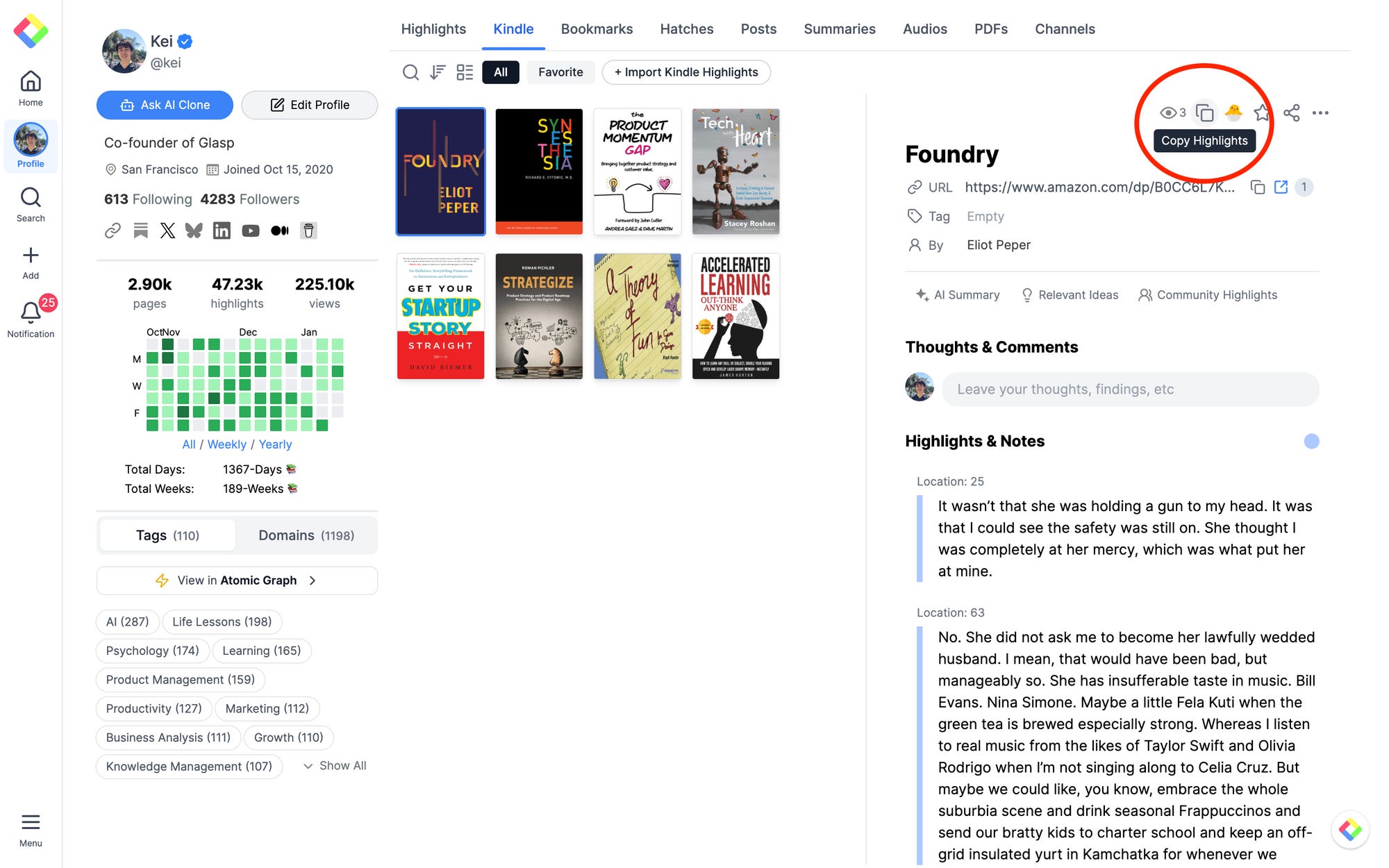
Glasp reads your highlights from Kindle Cloud Reader, so there is nothing to plug in and no Kindle device required. Sign in at read.amazon.com, open a book, and Glasp collects the highlights into your profile page. From there you copy them out, clean them up if you want, and paste them into NotebookLM as a source.
Bulk import is the part worth knowing about: you can bring in multiple books at once rather than one at a time, which is what makes cross-book questions possible.
The full step-by-step guide covers all eight steps, with screenshots for each one:
💡 What you can ask once your highlights are in
Find the argument running across your books. Load several books on the same theme and let NotebookLM tell you where the authors agree and where they do not.
“I’ve imported five books on habit formation. Where do these authors disagree?”
Get back what you forgot you marked. Your highlights from two years ago are still in there.
“What did I highlight about pricing, and which book was each from?”
Turn reading into study material. NotebookLM will build the questions from your own sources.
“Quiz me on the highlights from this book.”
Draft with your own sources instead of generic AI text. The quotes come back with the books they came from.
“I’m writing about deep work. Pull the passages I highlighted on focus and draft an opening that uses them.”
Compare a new book against everything you have already read. This is the one that is hard to do any other way.
“Does anything in this new book contradict what I highlighted last year?”
⏱️ A few minutes, and free
You need a Glasp account and the browser extension, both free, and a Kindle library with highlights in it. There is no Kindle device requirement and nothing to pay for on the Glasp side. The guide walks through each step with screenshots, including what to do when your highlights file arrives zipped.
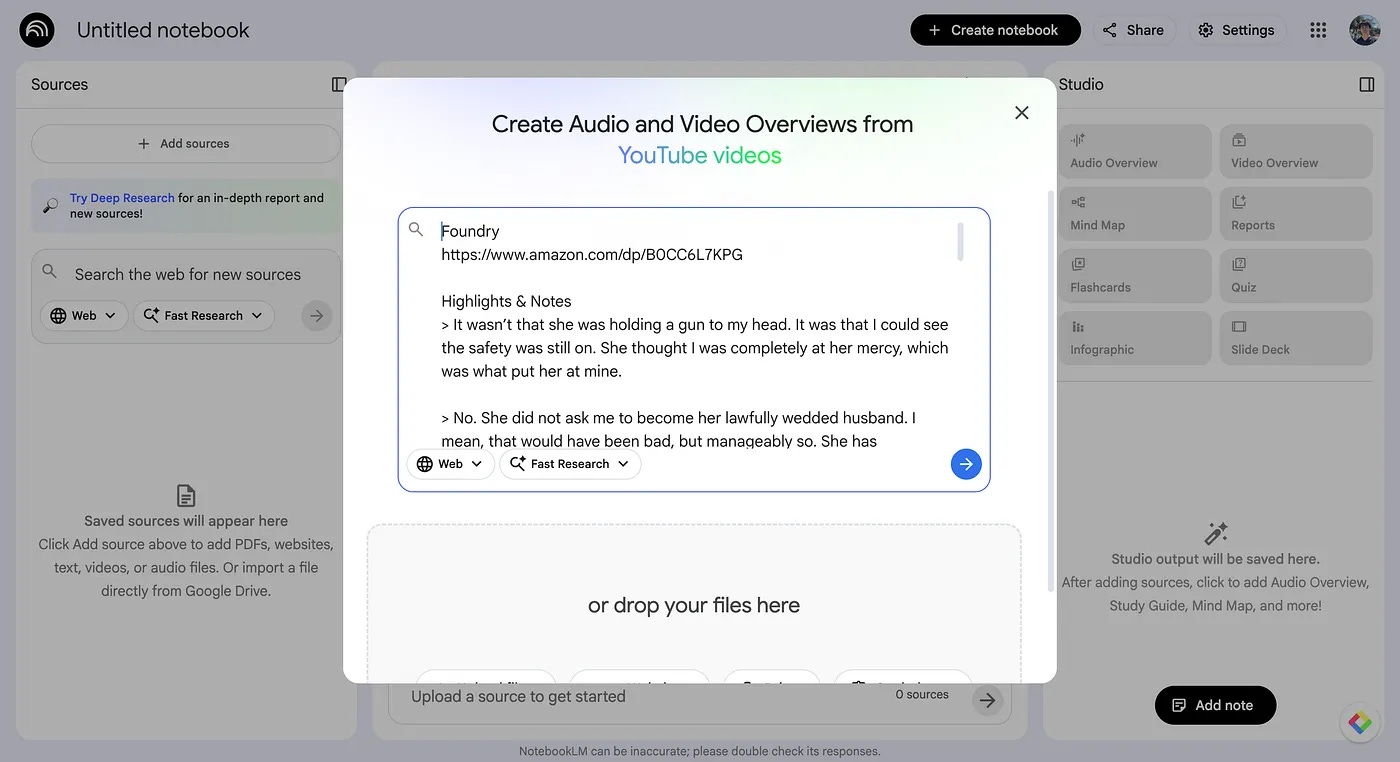
Your Kindle highlights are the most carefully filtered reading you own. Every one of them is a passage you stopped for. Getting them into NotebookLM turns that filtering into something you can ask questions of.
Note: Please make sure you import and use Kindle highlights in compliance with the copyright laws and regulations in your country or region of residence.
👉 FAQs
👉 X
See you next time,
Glasp team
–
Partner With Glasp
We currently offer newsletter sponsorships. If you have a product, event, or service you’d like to share with our community of learning enthusiasts, sponsor an edition of our newsletter to reach engaged readers.
Thank you for reading! We hope this feature, bulk import Kindle highlights to NotebookLM, helps your learning journey!
If you'd like to watch a tutorial in video, please follow the link below.
https://www.youtube.com/watch?v=545N-6--MA8